UI Density
Applications sometimes need to maximize screen real estate or, conversely, provide a more spacious layout. To address these requirements, the DeltaDesign theme allows you to change the UI density to alter element padding and font sizes. Three predefined modes are available:
-
Compact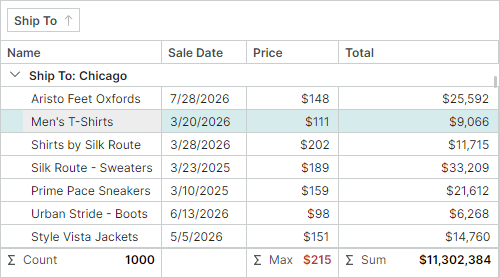
-
Standard(default)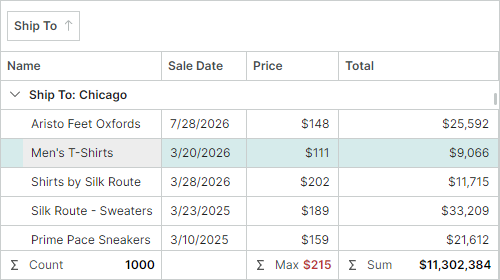
-
Spacious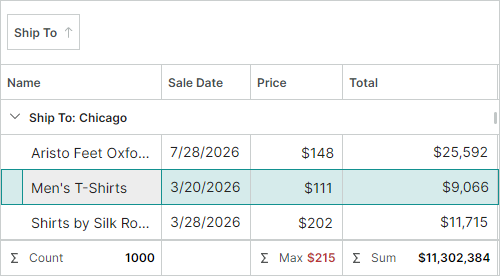
Modify the UI Density
To change the UI density, set the DeltaDesignTheme.Density property to an appropriate value from the Eremex.AvaloniaUI.Themes.DeltaDesign.Density enumeration.
The following example sets the UI density when registering the DeltaDesign theme in your App.axaml file:
<Application xmlns="https://github.com/avaloniaui"
             xmlns:x="http://schemas.microsoft.com/winfx/2006/xaml"
             xmlns:theme="clr-namespace:Eremex.AvaloniaUI.Themes.DeltaDesign;assembly=Eremex.Avalonia.Themes.DeltaDesign"
             x:Class="MyApp.App">
    <Application.Styles>
        <theme:DeltaDesignTheme Palette="AtlasDeep"
                        Density="Compact"/>
    </Application.Styles>
</Application>
To change the UI density at runtime, locate the registered DeltaDesign theme in your application styles and update its DeltaDesignTheme.Density property:
var deltaDesignTheme = Application.Current?.Styles.OfType<DeltaDesignTheme>().FirstOrDefault();
deltaDesignTheme.Density = Density.Compact;
Create a Density Selector in the Application's UI
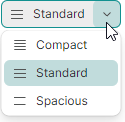
You can use the IAppeanceService object to manage DeltaDesign theme options, including color palettes, UI density, and theme variants. IAppearanceService allows you to change theme options in code. It also facilitates the creation of selector controls in your UI (such as a ribbon gallery, a combo box, or a menu) to let users switch theme options at runtime.
The following image demonstrates a combo box used as a selector for UI density options.
See the following topic for more information: Example - Create a Density Selector