Activate and Manage Licenses
Developer licenses for Eremex Controls are managed by two utilities from Guardant:
- 'Guardant Control Center' - A license management service. Installation file:
grdcontrol-x.xx.msifor Windows, andgrdcontrol-x.x_amd64.debfor Linux. - 'Guardant License Wizard' - A GUI and command-line tool that allows you to add, update and transfer licenses. Executable file:
license_wizard.exefor Windows, andlicense_wizardfor Linux.
You can download these tools using the following links:
- Guardant License Management Redistributables (Windows)
- Guardant License Management Redistributables (Linux)
Online Eremex Controls License Activation
-
Install 'Guardant Control Center'
-
Run 'Guardant License Wizard'
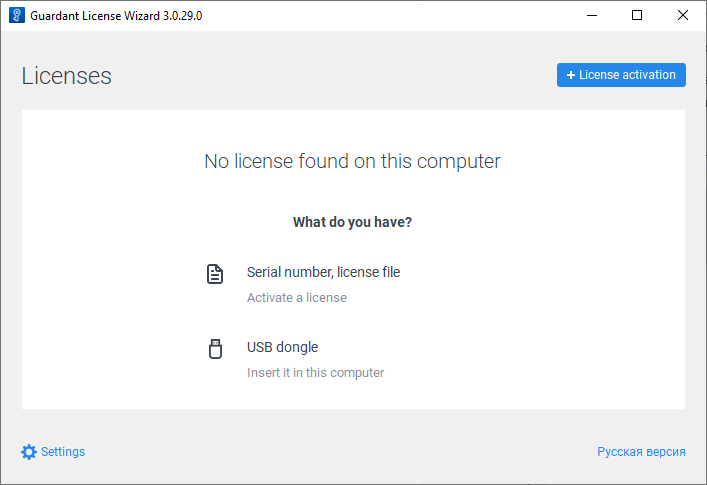
-
Click Settings, and ensure that the Server address property is set to https://getlicense.guardant.ru.
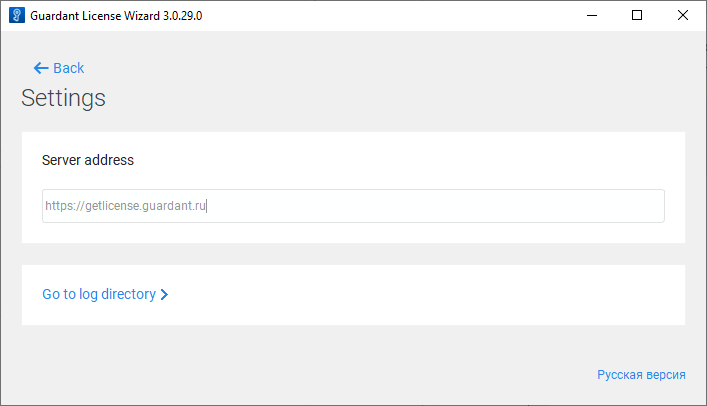
Then click Back to return to the previous page.
-
Click the License Activation button to add a new license key.
-
Specify the computer on which you want to register a license.
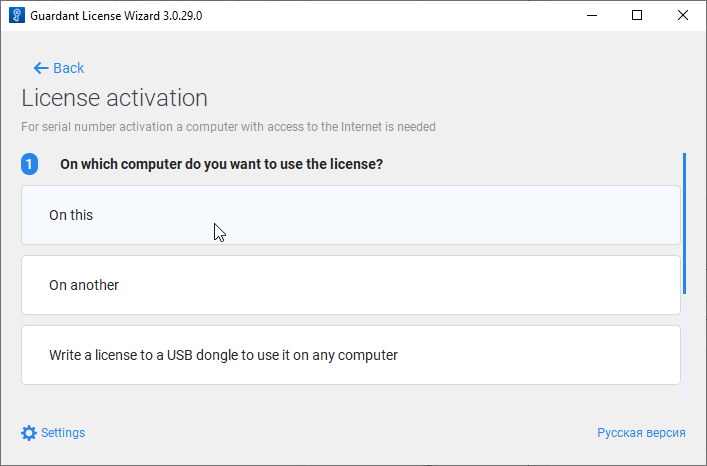
-
Enter your license key in the Serial Number field.
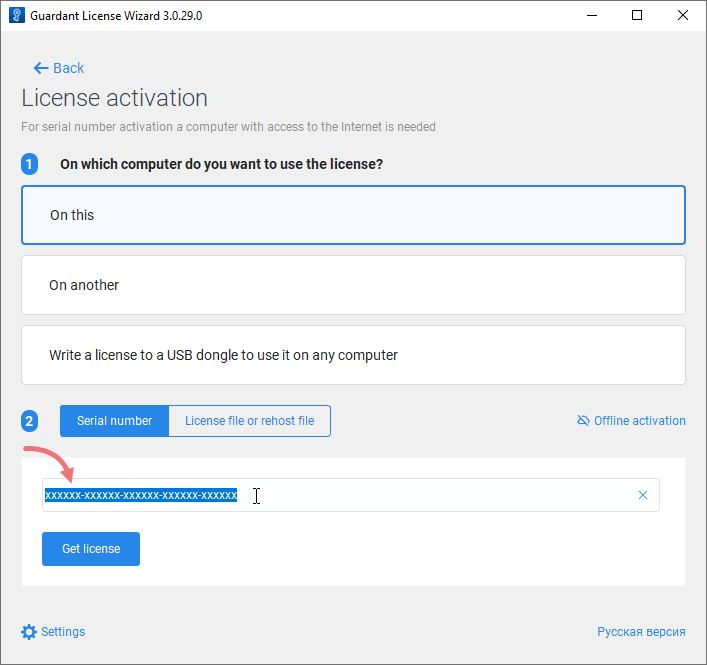
-
Click Get license.
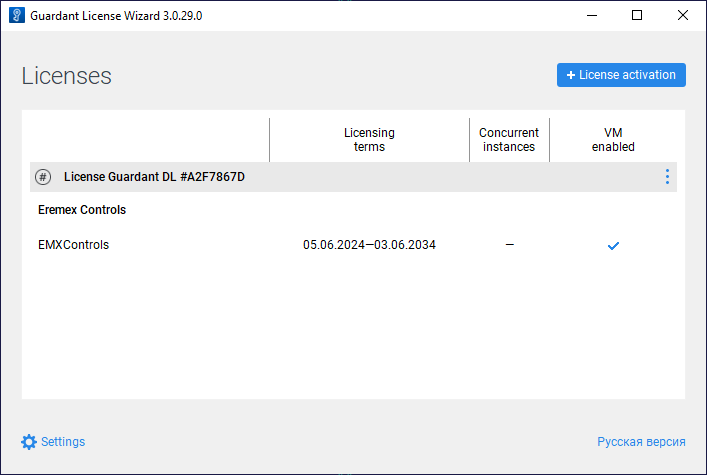
If the license activation is successful, the Wizard will display information about the licensed products.
Register a license from the command line
Get information about all command-line options
license_wizard --help
Online Update of the Eremex Controls License
-
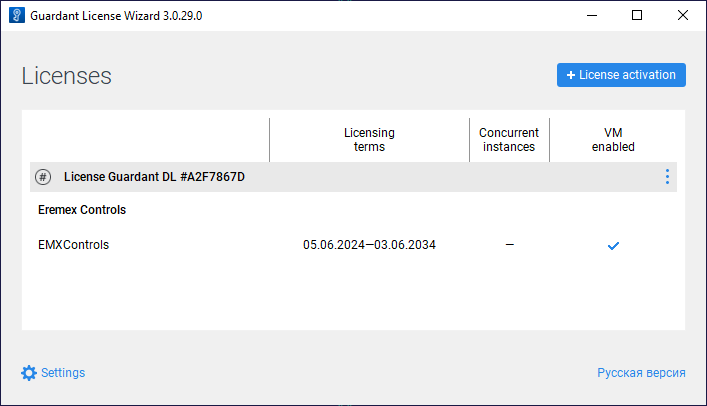
Run 'Guardant License Wizard'
-
Click Settings, and ensure that the Server address property is set to https://getlicense.guardant.ru. Then click Back to return to the previous page.
-
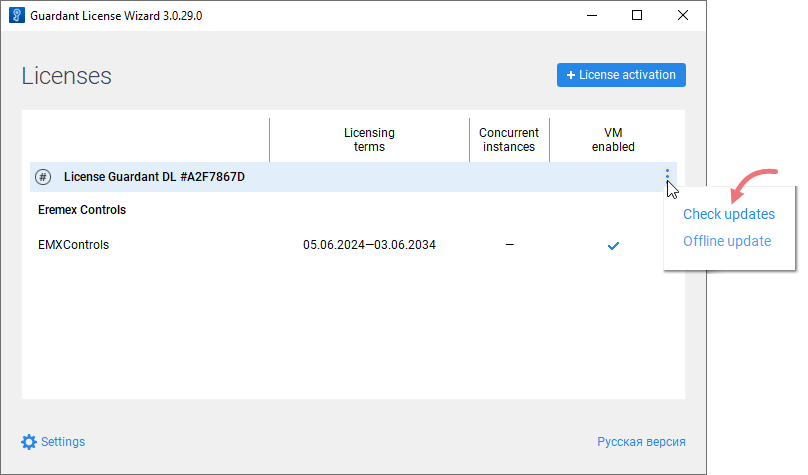
In the Licenses page, click the ellipsis ('...') button and click 'Check updates'.
-
Click the Install Updates link that appears if a license update is found on the server.
-
When the operation is successful, the Wizard will update the registered licenses.
Update a license from the command line
Offline Eremex Controls License Activation
-
Run 'Guardant License Wizard'
-
Click 'License activation'.
-
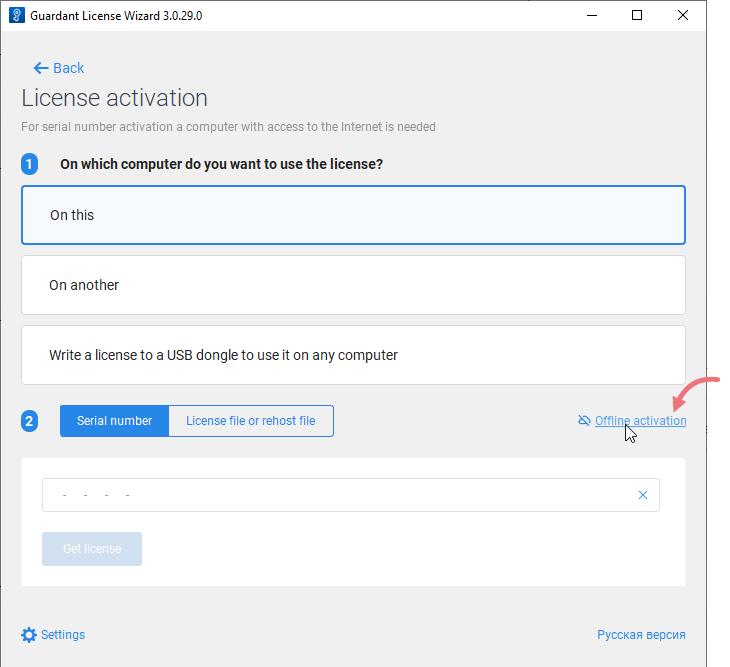
Select 'On this' to specify the computer on which you want to register a license.
-
Click the 'Offline activation' button.
-
Click 'Save' to save a request for a new license to a file.
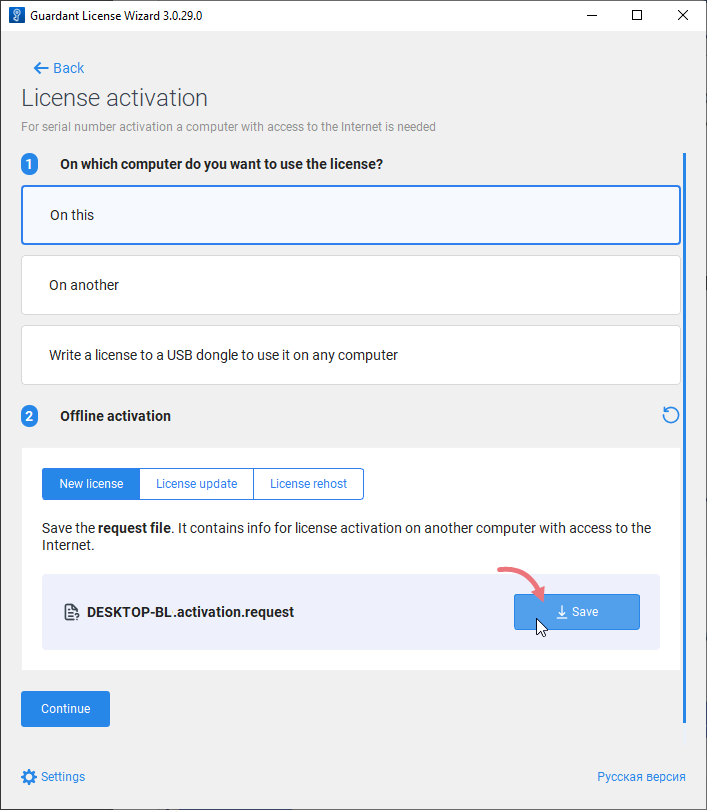
-
On another computer with Internet access, run 'Guardant License Wizard'.
-
Click Settings, and ensure that the Server address property is set to https://getlicense.guardant.ru. Then click Back to return to the previous page.
-
In the Licenses page, click the License Activation button.

-
Select "On another" to specify the computer for which to activate a license. Then click 'Continue'.
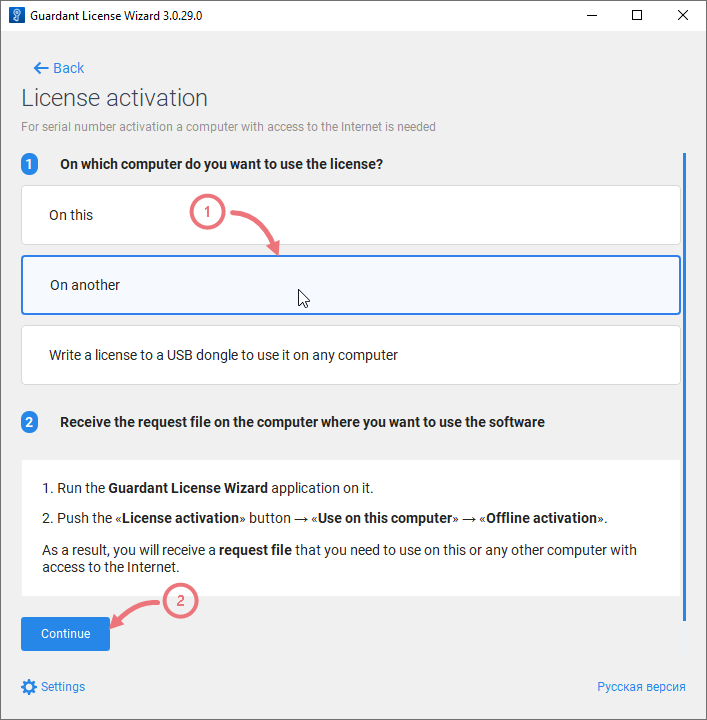
-
Load the request for a license that was generated on a target computer.
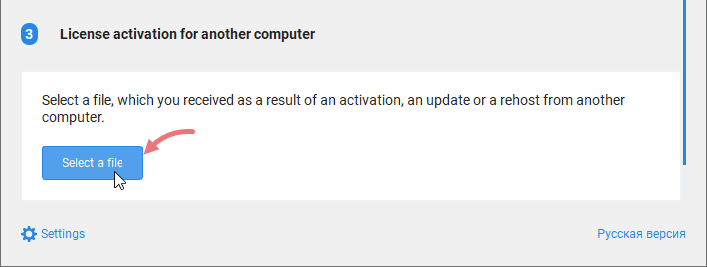
-
Enter your license number and click 'Activate a new license'.
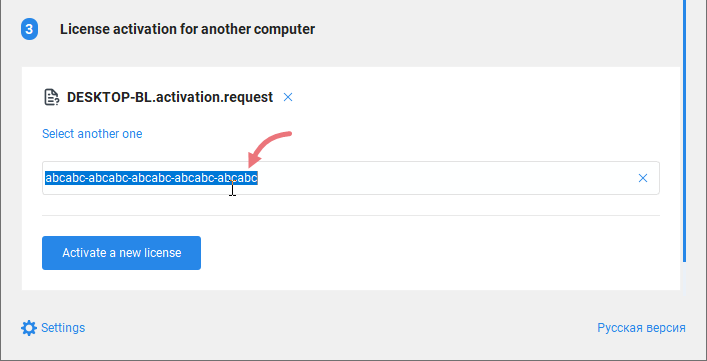
-
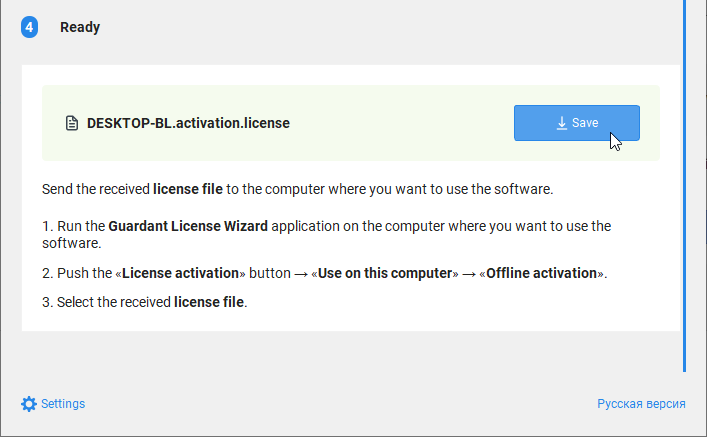
Save the license file ('*.license').
-
Go back to the target computer.
-
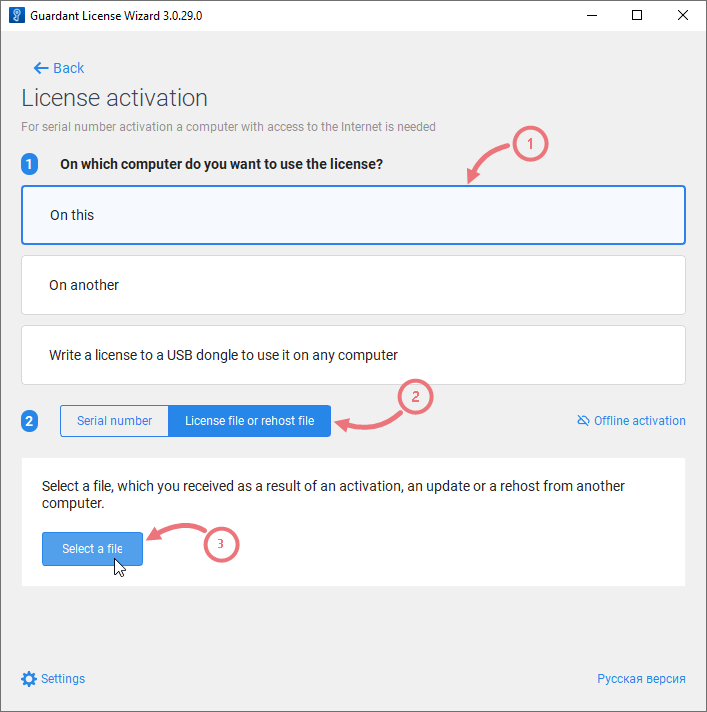
Run 'Guardant License Wizard', and switch to the 'License activation' page.
-
Select "On this" to the specify the computer for the license activation. Then click 'License file or rehost file', and load the generated license file ('*.license').
-
Activate the license.
Switch Between Licenses
If you have two or more licenses registered on your computer, you can select the required license for the project as follows.
-
Build your project if the
emxLicense.csfile is missing. Once generated, this file will reference the first found license.The third parameter of the
SetRuntimeLicenseOwnermethod in theemxLicense.csfile specifies the license id. -
Run 'Guardant License Wizard' to view the installed licenses.
-
Locate the id of the required license (a hexadecimal number displayed after the license title).
-
Replace the license id in the
SetRuntimeLicenseOwnermethod with the new one. -
Rebuild the project.