Activate and Manage Local Licenses
A local license is a type of software license that is tied to a single computer (or workstation). This topic covers how to deploy and manage local licenses on developers' machines.
License Management Utilities
All license types (local and network) for the EMX Controls library are handled using two utilities from Guardant - Guardant Control Center and Guardant License Wizard. These tools can be downloaded at:
- Guardant License Management Redistributables (Windows)
- Guardant License Management Redistributables (Linux)
Guardant Control Center
A license management service.
Installation files:
- Windows:
grdcontrol-x.x.msi - Linux:
grdcontrol-x.x_amd64.deb,grdcontrol-x.x.x86_64.rpm
Note
Guardant Control Center must be installed and running on the developer's machine to manage licenses and monitor their usage. Do not uninstall, stop, or disable the service; without it, the EMX Controls library cannot verify its license and will display trial messages.
Guardant License Wizard
A GUI and command-line tool that allows you to add, update, and transfer licenses.
Executable files:
- Windows:
license_wizard.exe - Linux:
license_wizard
To get information about all command-line options, run this command:
license_wizard --help
Online License Activation Using a Software Key (Guardant DL)
From the Command Line
From the UI
-
Ensure Guardant Control Center is installed and running.
-
Run Guardant License Wizard.
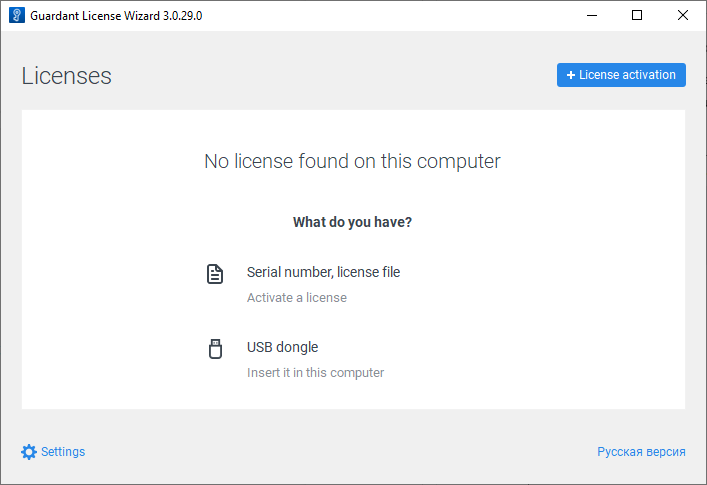
-
Click Settings, and ensure that the Server address property is set to https://getlicense.guardant.ru.
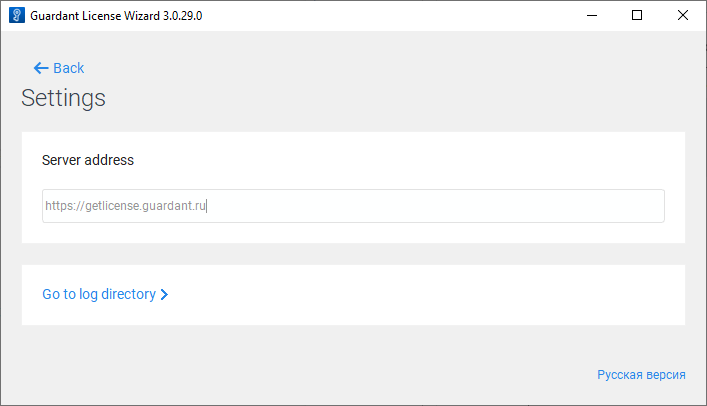
Then click Back to return to the previous page.
-
Click the License Activation button to add a new license key.
-
Specify the computer on which you want to register a license.
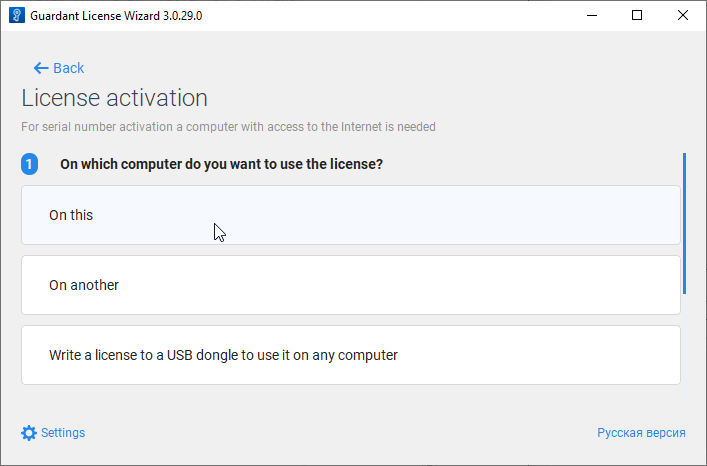
-
Enter your license key in the Serial Number field.
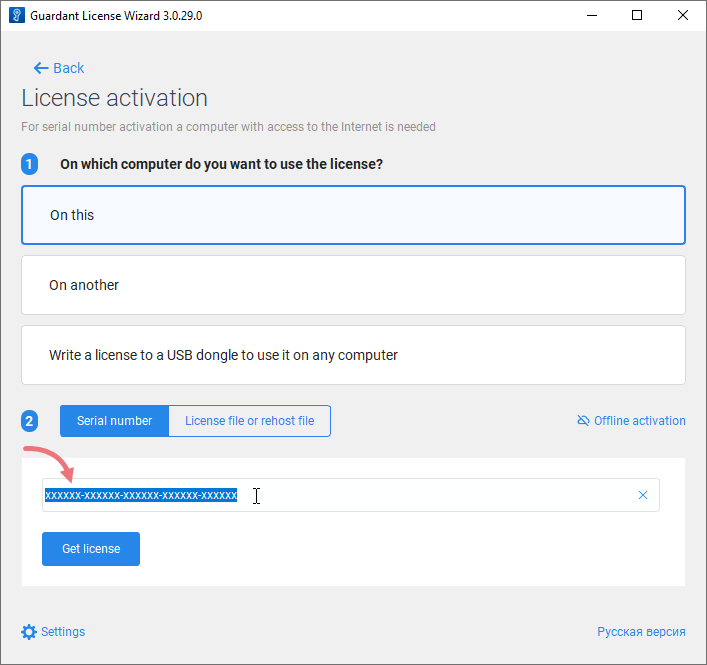
-
Click Get license.
If the license activation is successful, the Wizard will display information about the licensed products.
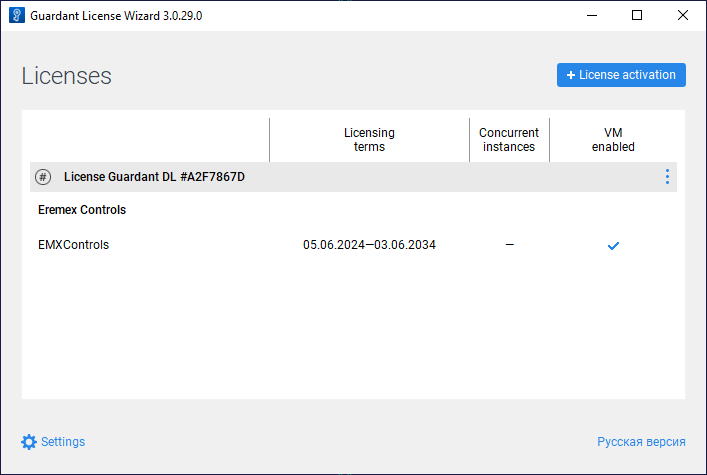
Offline License Activation Using a Software Key (Guardant DL)
If a computer has no internet access, you can still activate the software key using an offline procedure. This activation type includes the following steps:
- Step 1. Generate a request file on the machine that has no Internet access.
- Step 2. Get a license file from the request file on another machine with Internet access
- Step 3. Import the license file back to the offline machine.
These steps are explained in greater detail below.
-
Ensure Guardant Control Center is installed and running on the offline computer and the computer with Internet access.
-
Run Guardant License Wizard on the offline machine.
-
Click License activation.
-
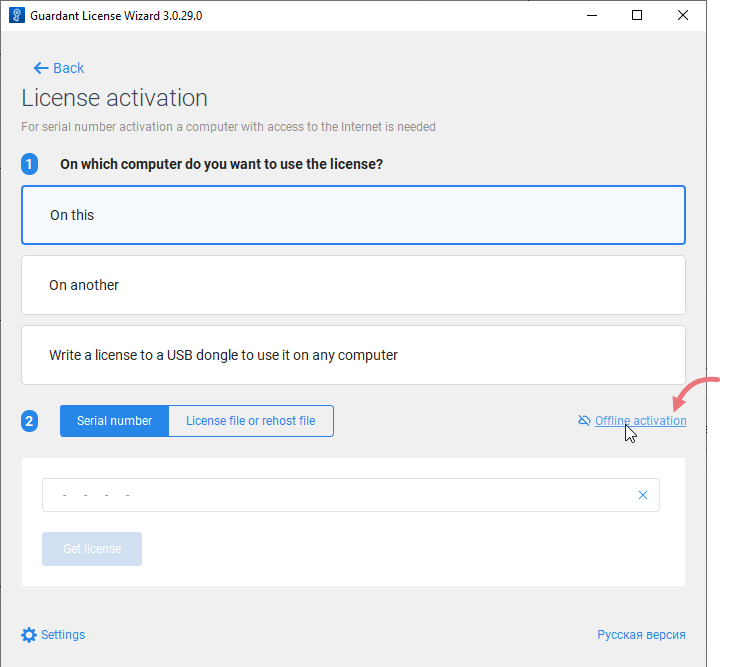
Select On this to specify the computer on which you want to register a license.
-
Click the Offline activation button.
-
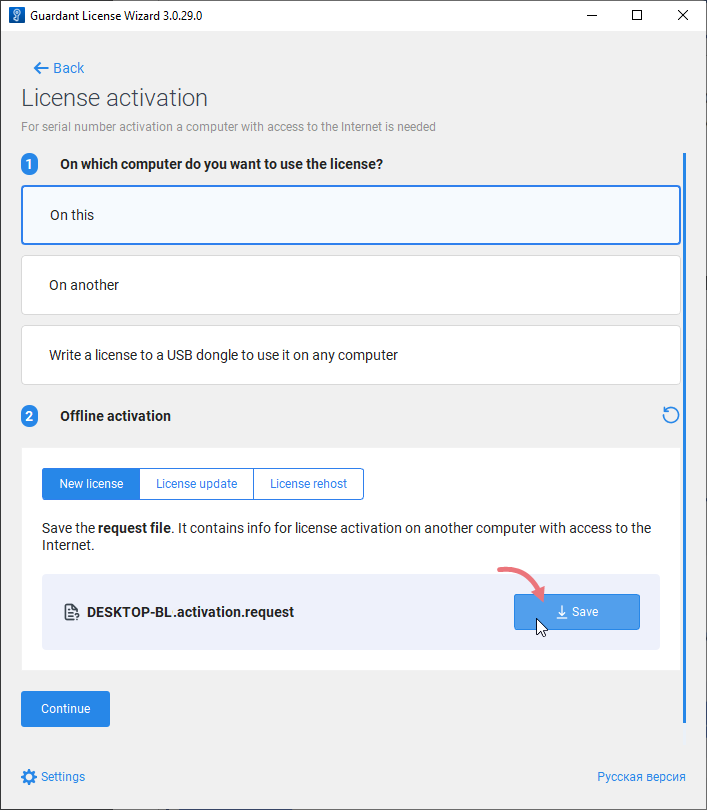
Click Save to save a request for a new license to a file.
-
On another computer with Internet access, run Guardant License Wizard.
-
Click Settings, and ensure that the Server address property is set to https://getlicense.guardant.ru. Then click Back to return to the previous page.
-
In the Licenses page, click the License Activation button.

-
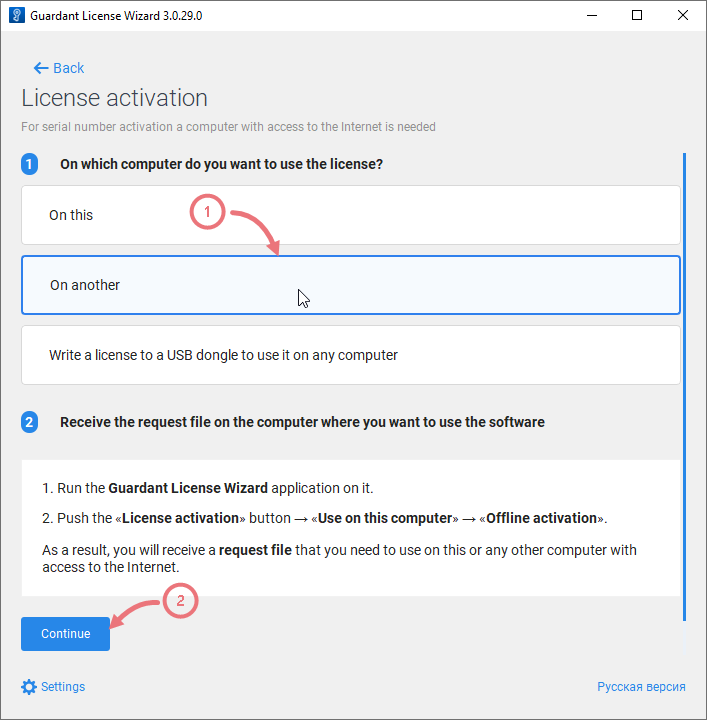
Select On another to specify the computer for which to activate a license. Then click 'Continue'.
-
Load the request for a license that was generated on a target computer.
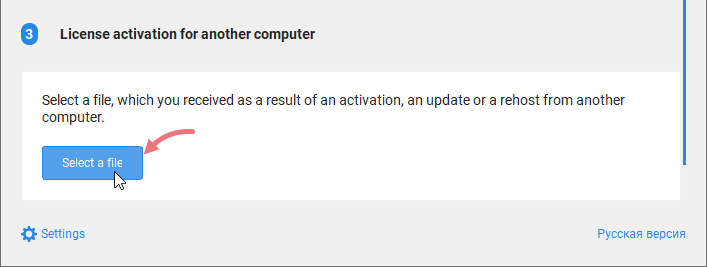
-
Enter your license number and click Activate a new license.
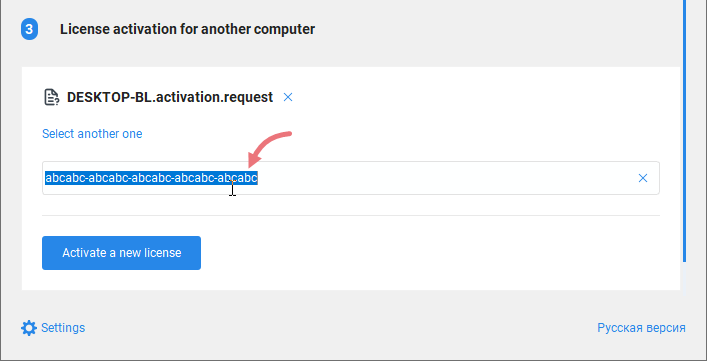
-
Save the license file ('*.license').
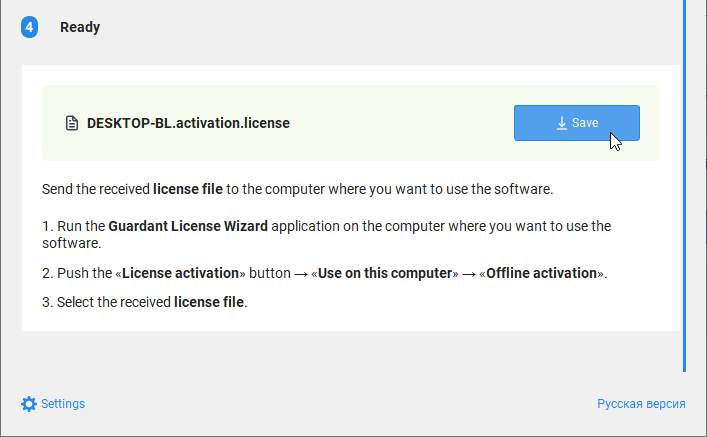
-
Go back to the target computer.
-
Run Guardant License Wizard, and switch to the License activation page.
-
Select On this to the specify the computer for the license activation. Then click License file or rehost file, and load the generated license file ('*.license').
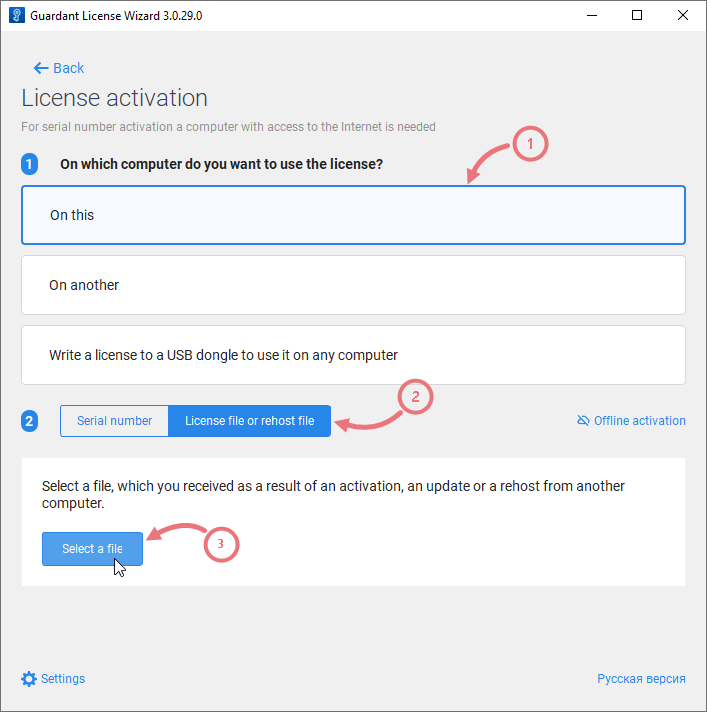
-
Activate the license.
Online Update of the License
From the Command Line
From the UI
-
Run Guardant License Wizard.
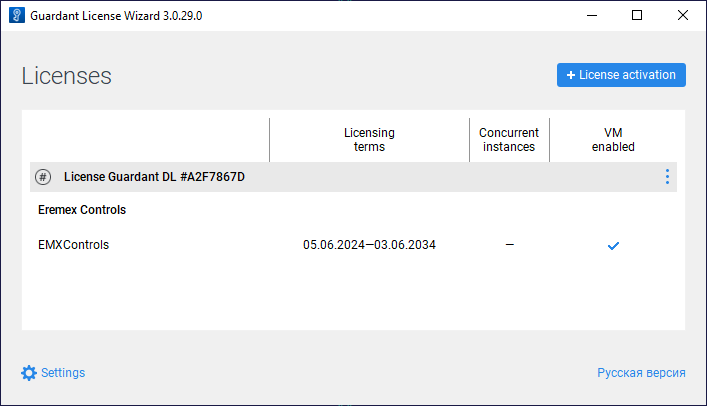
-
Click Settings, and ensure that the Server address property is set to https://getlicense.guardant.ru. Then click Back to return to the previous page.
-
In the Licenses page, click the ellipsis ('...') button and click 'Check updates'.
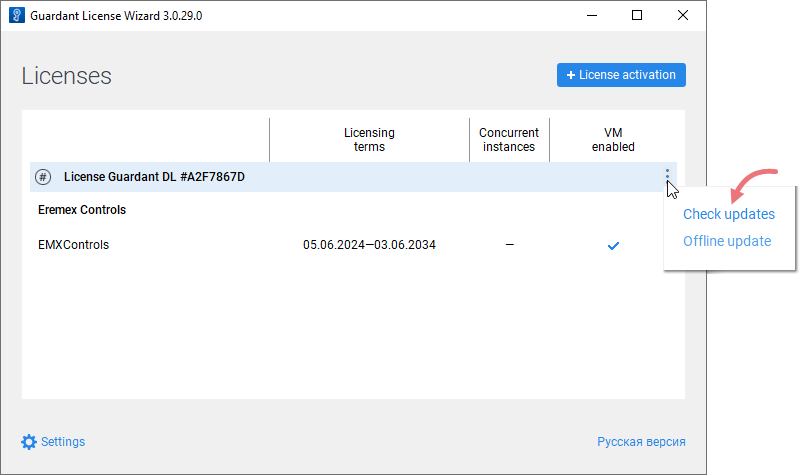
-
Click the Install Updates link that appears if a license update is found on the server.
-
When the operation is successful, the Wizard will update the registered licenses.
Switch Between Licenses
If you have two or more licenses registered on your computer, you can select the required license for the project as follows.
-
Build your project if the
emxLicense.csfile is missing. Once generated, this file will reference the first found license.The third parameter of the
SetRuntimeLicenseOwnermethod in theemxLicense.csfile specifies the license id. -
Run Guardant License Wizard to view the installed licenses.
-
Locate the id of the required license (a hexadecimal number displayed after the license title).
-
Replace the license id in the
SetRuntimeLicenseOwnermethod with the new one. -
Rebuild the project.