激活和管理本地许可证
本地许可证是一种绑定到单台计算机(或工作站)的软件许可证。本主题介绍如何在开发者的计算机上部署和管理本地许可证。
许可证管理工具
EMX Controls 库的所有许可证类型(本地许可证和网络许可证)均通过来自 Guardant 的两款工具进行管理:Guardant Control Center 和 Guardant License Wizard。您可以通过以下链接下载这些工具:
- Guardant License Management Redistributables (Windows)
- Guardant License Management Redistributables (Linux)
Guardant Control Center
许可证管理服务。
安装文件:
- Windows:
grdcontrol-x.x.msi - Linux:
grdcontrol-x.x_amd64.deb、grdcontrol-x.x.x86_64.rpm
Note
开发者的计算机上必须安装并运行 Guardant Control Center,以管理许可证并监控其使用情况。请勿卸载、停止或禁用该服务;否则 EMX Controls 库无法验证其许可证,并会显示试用版消息。
Guardant License Wizard
一个图形界面和命令行工具,可用于添加、更新和转移许可证。
可执行文件:
- Windows:
license_wizard.exe - Linux:
license_wizard
要获取所有命令行选项的信息,请运行以下命令:
license_wizard --help
使用软件密钥在线激活许可证 (Guardant DL)
从命令行
从界面
-
确保已安装并运行 Guardant Control Center。
-
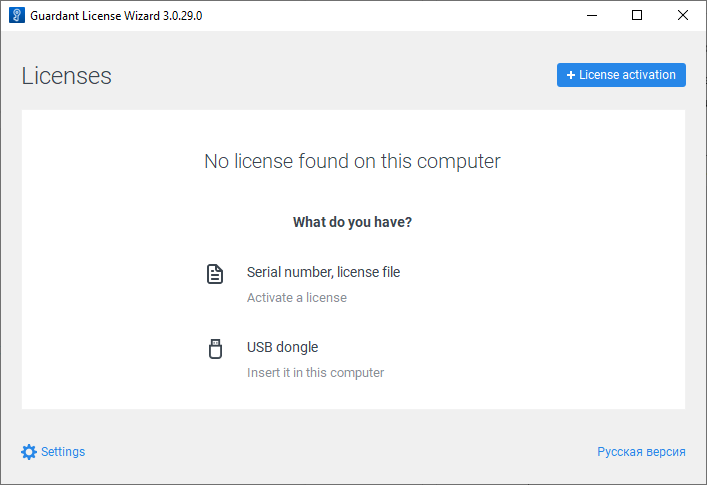
运行 Guardant License Wizard。
-
点击 Settings,并确保 Server address 属性设置为 https://getlicense.guardant.ru。
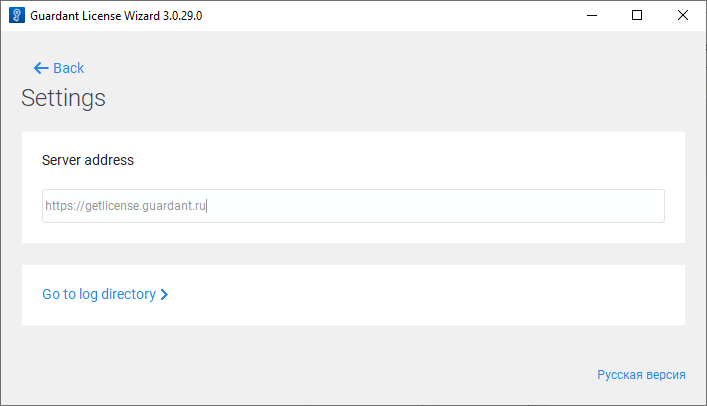
然后点击 Back 返回上一页。
-
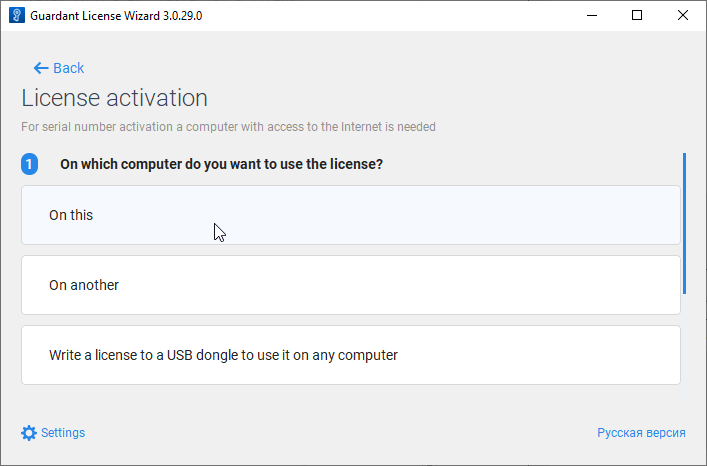
点击 License Activation 按钮以添加新的许可证密钥。
-
指定要在其上注册许可证的计算机。
-
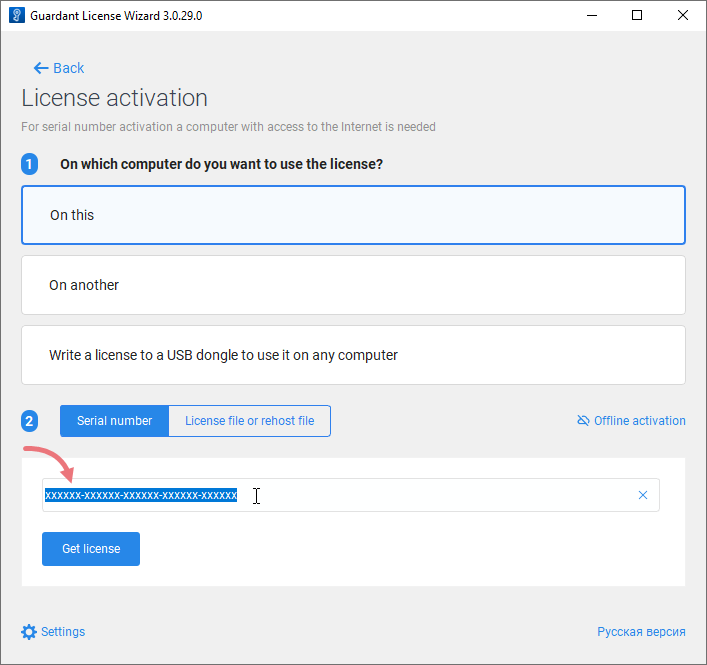
在 Serial Number 字段中输入您的许可证密钥。
-
点击 Get license。
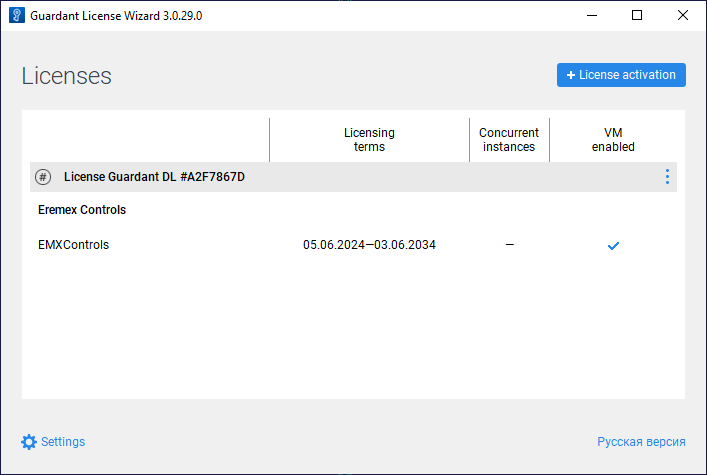
如果许可证激活成功,向导将显示已授权产品的相关信息。
使用软件密钥离线激活许可证 (Guardant DL)
如果计算机无法访问互联网,您仍然可以通过离线流程激活软件密钥。此激活方式包括以下步骤:
- 步骤 1. 在无法访问互联网的计算机上生成请求文件。
- 步骤 2. 在另一台可以访问互联网的计算机上,根据请求文件获取许可证文件。
- 步骤 3. 将许可证文件导入回离线计算机。
下面详细说明这些步骤。
-
确保离线计算机和可以访问互联网的计算机上都已安装并运行 Guardant Control Center。
-
在离线计算机上运行 Guardant License Wizard。
-
点击 License activation。
-
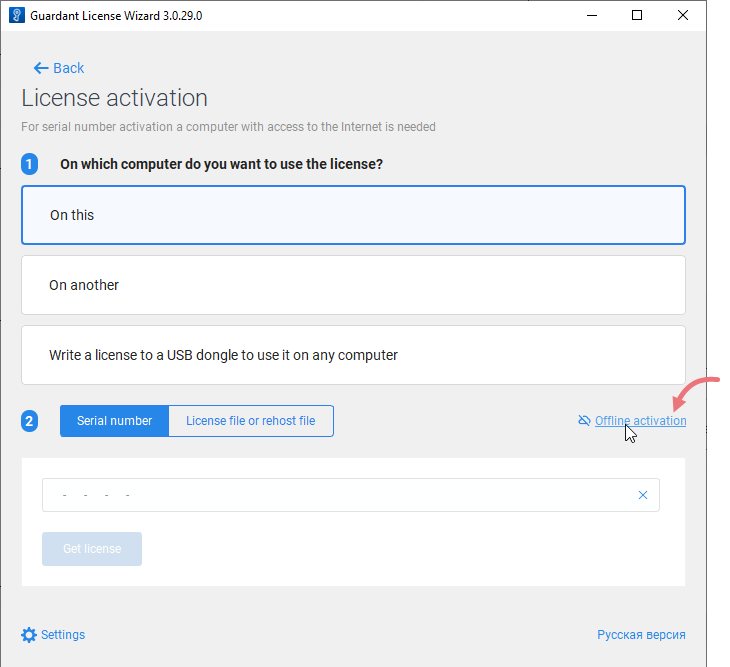
选择 On this 以指定要在其上注册许可证的计算机。
-
点击 Offline activation 按钮。
-
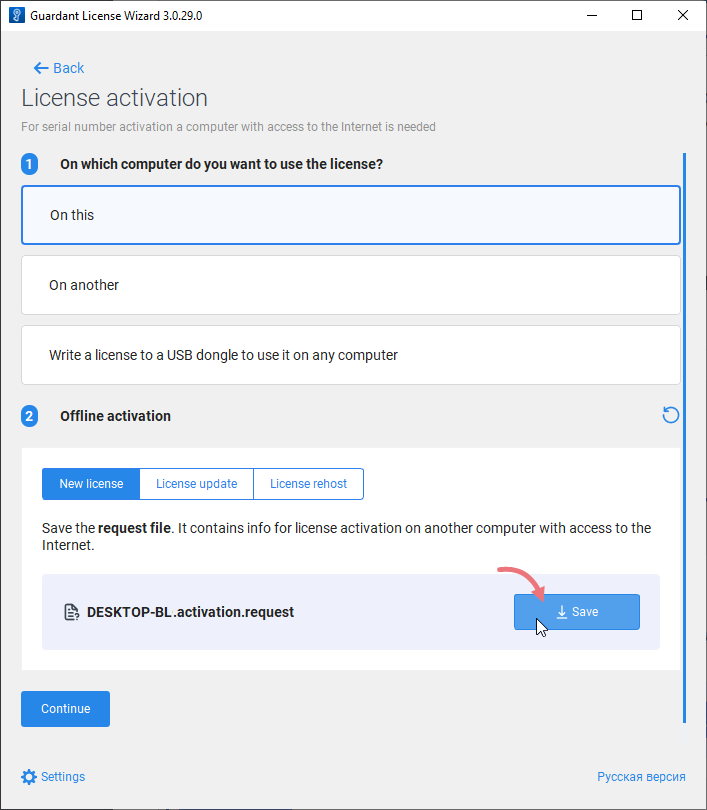
点击 Save 将新许可证的请求保存到文件中。
-
在另一台可以访问互联网的计算机上,运行 Guardant License Wizard。
-
点击 Settings,并确保 Server address 属性设置为 https://getlicense.guardant.ru。然后点击 Back 返回上一页。
-
在 Licenses 页面中,点击 License Activation 按钮。

-
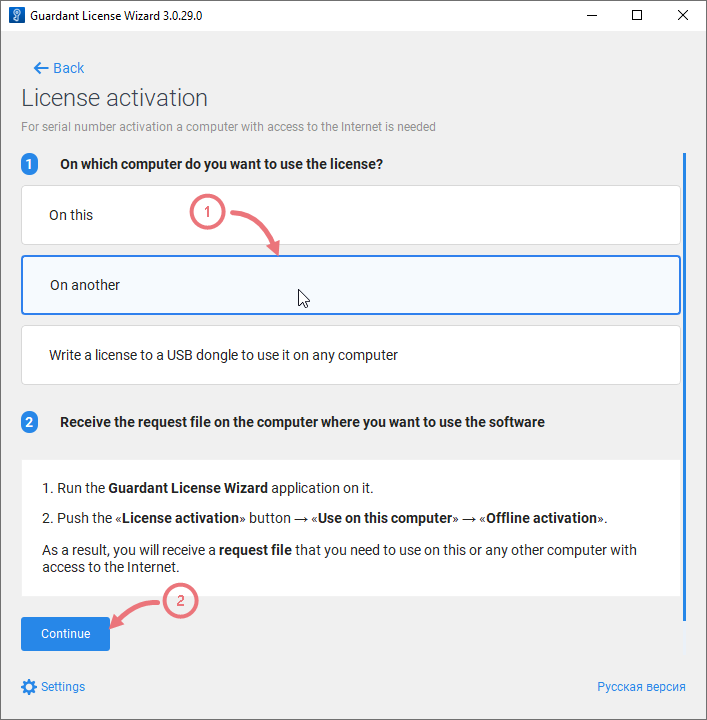
选择 On another 以指定要为其激活许可证的计算机。然后点击“Continue”。
-
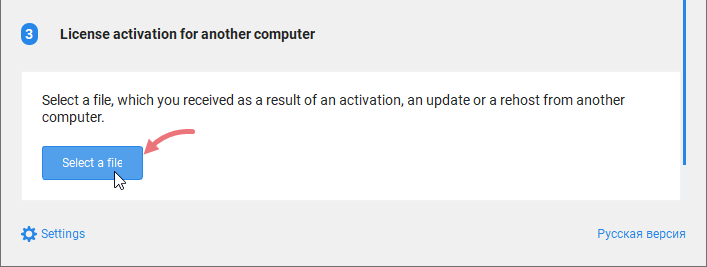
加载在目标计算机上生成的许可证请求。
-
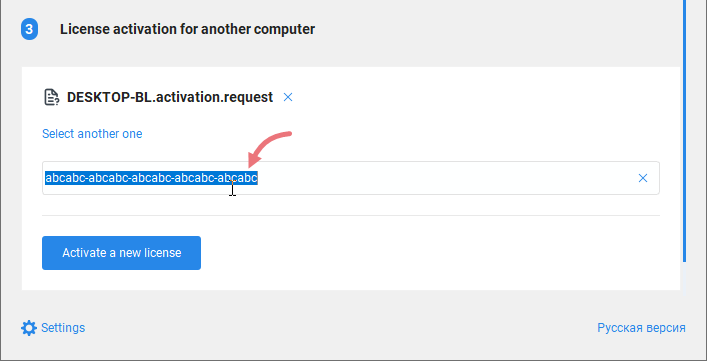
输入您的许可证编号,然后点击 Activate a new license。
-
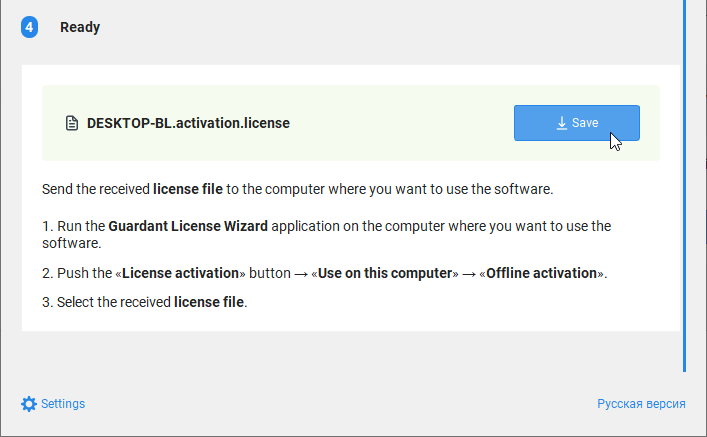
保存许可证文件(“*.license”)。
-
返回目标计算机。
-
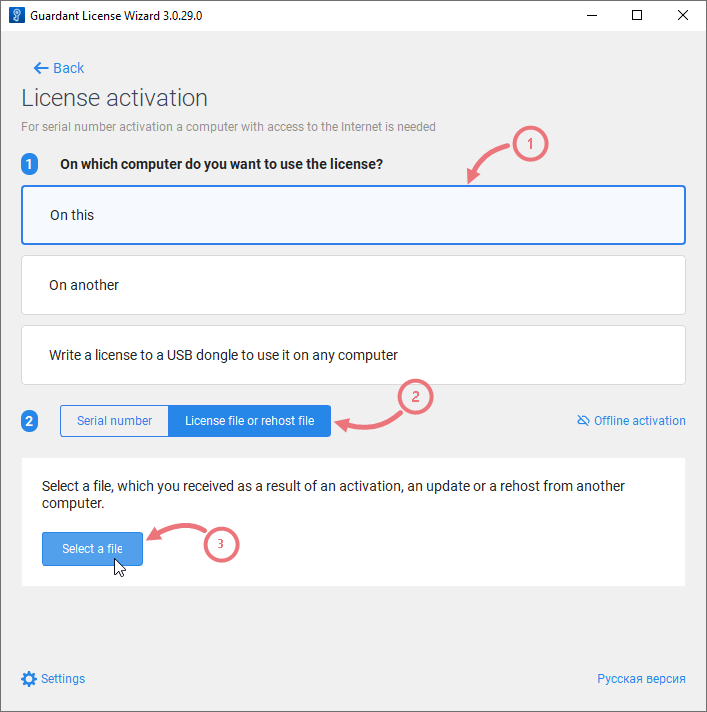
运行 Guardant License Wizard,并切换到 License activation 页面。
-
选择 On this 以指定用于许可证激活的计算机。然后点击 License file or rehost file,并加载生成的许可证文件(“*.license”)。
-
激活许可证。
在线更新许可证
从命令行
从界面
-
运行 Guardant License Wizard。
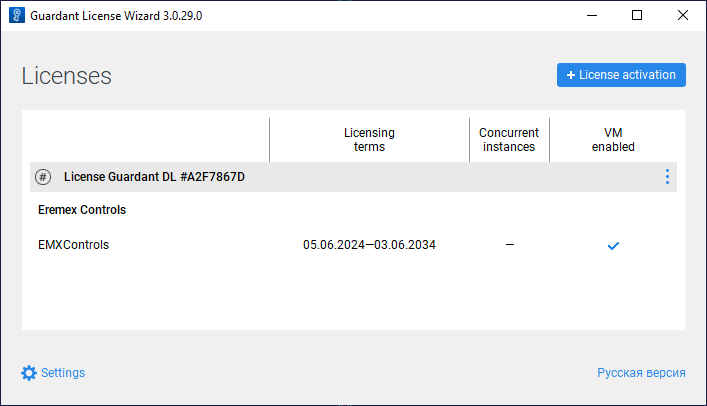
-
点击 Settings,并确保 Server address 属性设置为 https://getlicense.guardant.ru。然后点击 Back 返回上一页。
-
在 Licenses 页面中,点击省略号(“...”)按钮,然后点击“Check updates”。
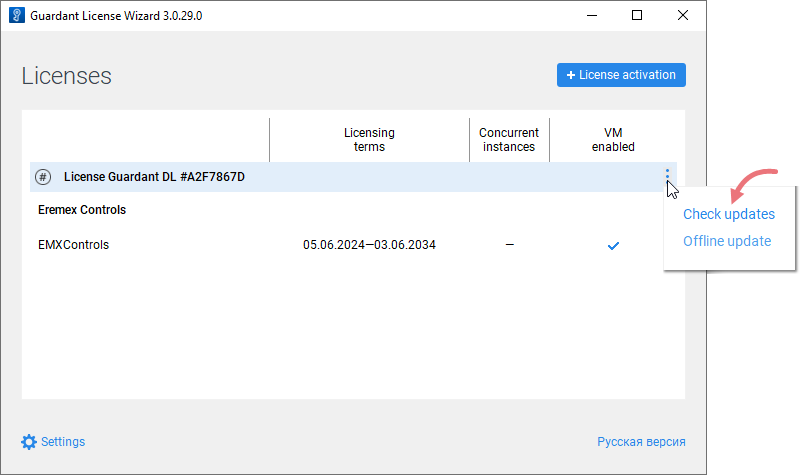
-
如果在服务器上找到许可证更新,请点击出现的 Install Updates 链接。
-
操作成功后,向导将更新已注册的许可证。
切换许可证
如果您的计算机上注册了两个或更多许可证,可以按照以下方式为项目选择所需的许可证。
-
如果
emxLicense.cs文件缺失,请先生成项目。生成后,该文件将引用找到的第一个许可证。emxLicense.cs文件中SetRuntimeLicenseOwner方法的第三个参数指定了许可证 ID。 -
运行 Guardant License Wizard 以查看已安装的许可证。
-
找到所需许可证的 ID(在许可证标题后显示的十六进制数字)。
-
将
SetRuntimeLicenseOwner方法中的许可证 ID 替换为新的 ID。 -
重新生成项目。
* 本页面使用机器翻译技术翻译。