Node Drag-and-Drop
TreeList and TreeView controls support the node drag-and-drop functionality within the controls and to external controls. The drag-and-drop feature is implemented in the base class of TreeList and TreeView, TreeListControlBase. This class exposes the API to enable and handle node drag-and-drop operations.

When you drag nodes, node previews are shown. However, if you enable platform-based node drag-and-drop (required for dragging nodes between applications), node previews are not available.
Enable Node Drag-and-Drop
Set the TreeListControlBase.AllowDragDrop property to true to enable node drag-and-drop. In this case a user can drag a node within the TreeList/TreeView control and outside the control.
A drag-and-drop operation moves a node to another position, and also changes the position of a corresponding business object in the data source.
If a node is dragged to an external control, the default behavior of the TreeList/TreeView control is to remove the node from the current control, and delete the corresponding business object from the control's data source. See Node Drag-and-Drop Between Controls for information on how to prevent nodes and business objects from being deleted.
Drag-and-drop of multiple nodes is supported if you enable multiple node selection using the DataControlBase.SelectionMode property (see Nodes - Multiple Node Selection (Highlight)).
TreeList and TreeView controls do not maintain automatic copy operations during drag-and-drop. Pressing the CTRL key is not in effect.
Enable Node Drag-and-Drop Between Applications
To allow nodes to be dragged between applications, enable the UsePlatformRowDragDrop property for the control that is the source of drag-and-drop operations.
Tip
The UsePlatformRowDragDrop property enables a drag-and-drop mode in which operations are handled by the Avalonia platform. No node previews are shown during platform-based drag operations.
Node Drag Mode – Start Drag Operations in Cells or Use Special Drag Handles
Tree List supports two node drag-and-drop modes that differ in how drag-and-drop operations are initiated. You can select the required mode using the control's RowDragMode property.
-
RowDragMode.Rowmode (default) — Users can initiate a drag-and-drop operation in any node cell.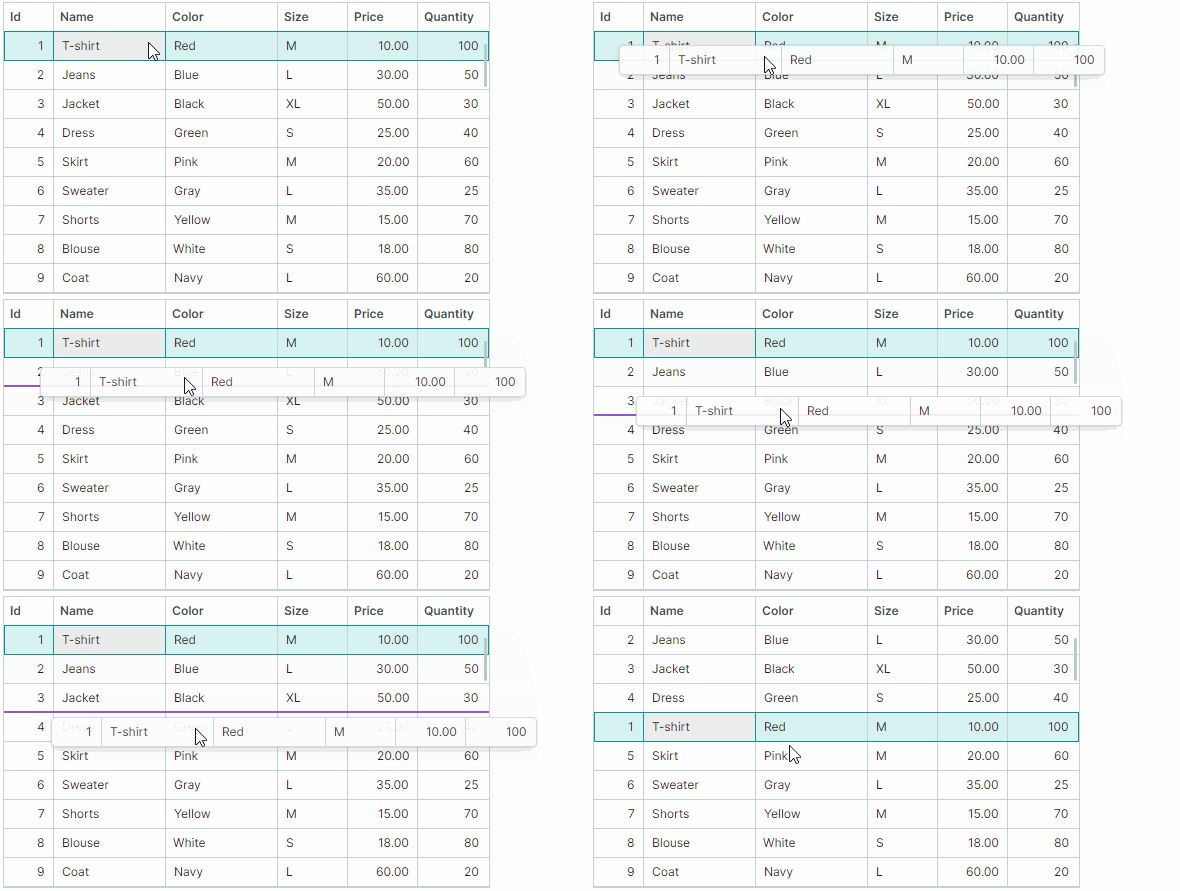
In this mode, the default cell editor activation behavior is as follows:
-
A user needs to focus a cell first.
-
A click within the focused cell then activates the cell editor.
To activate a cell editor on a single click, enable cell editor activation on mouse button release. To do this, set the control's
DataControlBase.EditorShowModeproperty toEditorShowMode.PointerReleased. -
-
RowDragMode.DragHandlemode — Users can initiate a drag-and-drop operation by dragging a special drag handle. Drag handles are displayed in the Row Indicator region, which automatically appears to the left of the nodes when you activateRowDragMode.DragHandlemode.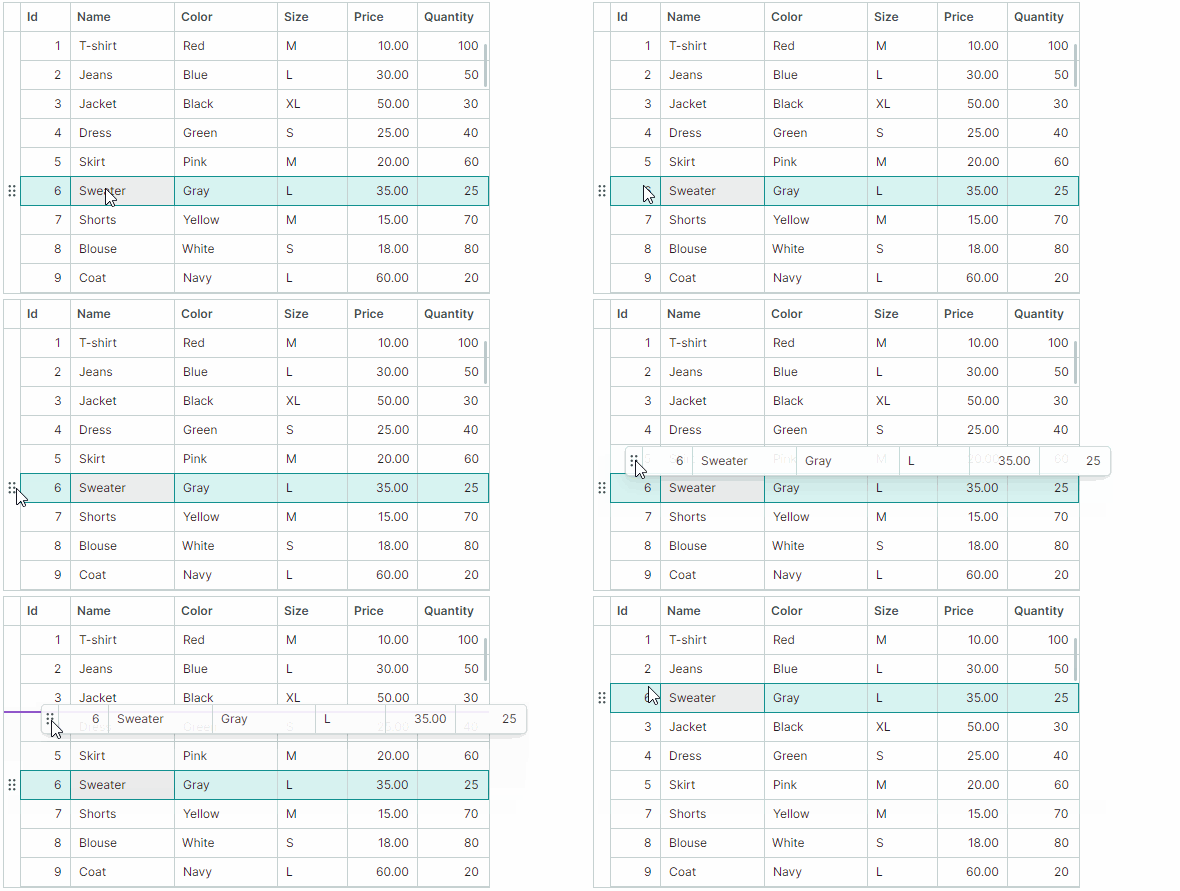
In
DragHandlemode, cell editors are activated on a single press within a cell, by default. You can use the control'sDataControlBase.EditorShowModeproperty to change this behavior.When multiple node selection is enabled, drag handles are shown for each selected node.
Related API:
RowIndicatorWidth— Specifies the width of the Row Indicator region, which displays drag handles.
Drag-and-Drop of Sorted Data
TreeList and TreeView nodes can be sorted. Node drag-and-drop operations within sorted TreeList and TreeView controls are disabled by default. Set the TreeListControlBase.AllowDragDropSortedNodes property to true to enable drag-and-drop operations within sorted controls.
If data is sorted and a node is dragged to a position before or after another node, the control automatically updates the dragged node's value(s) in the sorted column(s) to keep the current sort order. The dragged node's values in the sorted columns are set to corresponding values of the target node.
Handle Drag-and-Drop Operations with Events
The TreeList and TreeView controls contain events that help you manage and respond to node drag-and-drop operations.
Start Drag-and-Drop
The TreeListControlBase.StartDrag event fires when a drag-and-drop operation is about to start. Use the following event parameters to get information about the current drag-and-drop operation.
e.Data— Specifies theDragDropDataobject that contains the data of the current drag-and-drop operation.e.DragElement— The visual element being dragged.
e.Effects— Specifies the drag-and-drop effect. Set this parameter toDragDropEffects.Noneto cancel the current drag-and-drop operation. The drag-and-drop effect also determines the mouse pointer icon.e.Nodes— An array ofTreeListNodeobjects that are about to be dragged. This array contains a single object if only one node is being dragged.
Example - Prevent a drag-and-drop operation from starting for specific nodes
The following StartDrag event handler disables drag-and-drop operations for nodes that contain children.
private void TreeList_StartDrag(object sender, TreeListStartDragEventArgs e)
{
    if(e.Nodes[0].HasChildren)
        e.Effects = Avalonia.Input.DragDropEffects.None;
}
Handle the Drag-Over Stage
The TreeListControlBase.DragOver event is raised repeatedly while a user drags a node (or nodes) over another node. The event's arguments allow you to identify information related to the current drag-and-drop operation:
e.DragNodes— An array of treelist nodes (TreeListNode) being dragged. This array contains a single object if only one node is being dragged.e.TargetNode— The treelist node over which the nodes are dragged.-
e.DropPosition— Specifies the potential drop position relative to the target node. Available options include:DropPosition.Before— Dragged nodes, if dropped, will be added at the same hierarchy level before the target node.DropPosition.After— Dragged nodes, if dropped, will be added at the same hierarchy level after the target node.DropPosition.Inside— Dragged nodes, if dropped, will be added as a child of the target node.-
DropPosition.EmptyArea(new in v1.5) — Nodes are dragged over the empty area below all treelist nodes.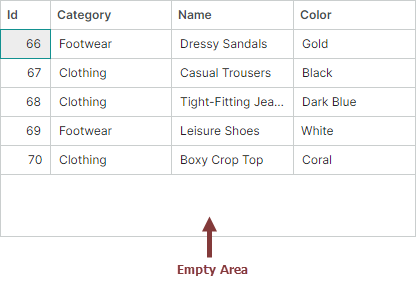
The
e.Effectsparameter is initially set toDragDropEffects.Nonewhen nodes are dragged over the empty area, thus preventing them from being dropped here.Set the
e.Effectsparameter toDragDropEffects.MoveorDragDropEffects.Copyto allow node drop operations over the empty area. When nodes are dropped over this area, they are inserted at the end of all root nodes.
You can modify the
e.DropPositionparameter to change how dragged nodes are inserted. For instance, to always append dragged nodes at the end of all root nodes, set thee.DropPositionparameter toDropPosition.EmptyArea, and ensure thee.Effectsparameter is not set toNone. -
e.KeyModifiers— Specifies whether the ALT, SHIFT, and/or CTRL key is pressed during theDragOverevent. e.Data— Specifies theDragDropDataobject that contains the data of the current drag-and-drop operation.e.Effects— Specifies the drag-and-drop effect. Set this parameter toDragDropEffects.Noneto cancel the current drag-and-drop operation. The drag-and-drop effect also determines the mouse pointer icon.
Example - Allow nodes to be dropped within the empty area
The following TreeListControlBase.DragOver event handler sets the e.Effects parameter to Move to allow nodes to be dropped within the control's empty area.
private void TreeList_DragOver(object sender, TreeListDragEventArgs e)
{
    if (e.DropPosition == DropPosition.EmptyArea)
        e.Effects = Avalonia.Input.DragDropEffects.Move;
}
Example - Insert dragged nodes always at the end
The following TreeListControlBase.DragOver event handler ensures dragged nodes are always inserted at the end of all root nodes when dropped. To do this, the e.DropPosition event parameter is forcibly set to DropPosition.EmptyArea, and the e.Effects parameter is set to Move.
private void TreeList_DragOver(object sender, TreeListDragEventArgs e)
{
    e.DropPosition = DropPosition.EmptyArea;
    e.Effects = Avalonia.Input.DragDropEffects.Move;
}
Example - Prevent nodes from being dropped at the root level
The following DragOver event handler prevents nodes from being dropped next to root nodes. The code still allows nodes to be dropped as children of root nodes.
private void TreeList_DragOver(object sender, TreeListDragEventArgs e)
{
    if(e.TargetNode?.Level == 0 && (e.DropPosition==DropPosition.Before || e.DropPosition == DropPosition.After))
        e.Effects = Avalonia.Input.DragDropEffects.None;
}
Finish Drag-and-Drop
Two events are available to help you manage the drop stage of a drag-and-drop operation:
-
TreeListControlBase.Drop— Fires when a node is about to be dropped over another treelist node. The event's arguments match those of theTreeListControlBase.DragOverevent.To cancel a drop operation in specific cases, handle the
Dropevent and set itse.Handledparameter totrue.If a node is dropped outside the current TreeList/TreeView control, the
Dropevent does not fire for this control. See theTreeListControlBase.CompleteDragDropevent's description below for more information.Example - Modify a dropped node's values
The following
Dropevent handler changes a value of a dragged node(s) when it is dropped. It is assumed that the data source contains the "Assignee" field. The code below sets the dropped node's "Assignee" field to the target node's "Assignee" field value.private void TreeList_Drop(object sender, TreeListDragEventArgs e) { if (e.DropPosition != DropPosition.Inside) return; TreeListControl treeList = e.Source as TreeListControl; string newAssignee = treeList.GetCellValue(e.TargetNode, "Assignee").ToString(); foreach (TreeListNode node in e.DragNodes) { treeList.SetCellValue(node, "Assignee", newAssignee); } } -
TreeListControlBase.CompleteDragDrop— Fires after a drag-and-drop operation has been finished within the current control or outside the current control.The
TreeListControlBase.CompleteDragDropevent fires after theTreeListControlBase.Dropevent.The following arguments are available for the
TreeListControlBase.CompleteDragDropevent:e.DragNodes— An array of treelist nodes (TreeListNode) that have been dropped.e.Effects— Returns the drag-and-drop effect that has been set in aDropevent handler of the control on which the node has been dropped.
See also: Node Drag-and-Drop Between Controls
Drag-and-Drop Options
The TreeList/TreeView controls expose the following options to customize node drag-and-drop operations:
TreeListControlBase.AutoExpandOnDrag— Gets or sets whether collapsed nodes are automatically expanded when hovered during a drag-and-drop operation.TreeListControlBase.AutoExpandDelayOnDrag— Gets or sets the delay before collapsed nodes are automatically expanded when the mouse is over them during a drag-and-drop operation.TreeListControlBase.AllowScrollingOnDrag— Gets or sets whether the TreeList/TreeView automatically scrolls nodes when you drag a node at the control's top or bottom edge.
Node Drag-and-Drop Between Controls
Drag-and-drop of nodes (rows) is automatically supported between TreeListControl, TreeViewControl and DataGridControl controls. Use the AllowDragDrop option exposed by these controls to enable the drag-and-drop functionality for them.
Visual Indication of Drag-and-Drop
When a node (row) is dragged, TreeListControl, TreeViewControl and DataGridControl controls visually indicate a potential drop position.

Automatic Movement of a Node (Row) and Its Item from the Source to the Target Control
TreeListControl, TreeViewControl and DataGridControl support automatic movement of a dragged node (row) between these controls during a drag-and-drop operation: a new node (row) containing dragged data is added to the target control, and the dragged node (row) is then removed from the source control. The corresponding item (business object) is transferred between the source and target controls' item sources, as well.
Automatic movement of a node (row) and the corresponding item occurs if the data type of items in the source control matches or compatible with the data type of items in the target control. See the Type.IsAssignableFrom method, used to check the compatibility of data types.
To prevent a node (row) and item from being deleted in the source control during a drag-and-drop operation to external controls, you can do one of the following:
-
Handle the target control's
Dropevent and set itse.Effectsevent parameter toAvalonia.Input.DragDropEffects.None. -
Handle the source control's
TreeListControlBase.CompleteDragDropevent, and set thee.Handledevent parameter totrue.
Drag-and-Drop to Other Controls
The TreeListControl, TreeViewControl and DataGridControl controls do not maintain automatic drag-and-drop of rows/nodes to other controls (for instance, the standard Avalonia DataGrid). To allow nodes/rows to be dragged to these controls, enable the drag-and-drop functionality for them using the Avalonia.Input.DragDrop.AllowDrop attached property. Handle the target control's Avalonia.Input.DragDrop.Drop attached event to accept dragged nodes (rows). While handling the DragDrop.Drop event, you can access the dragged nodes (rows) from the Data event parameter.