Area Series View
Area Series View(CartesianAreaSeriesView)用线条连接各个数据点,并使用指定的颜色填充图表与 X 轴之间的区域。您可以使用半透明颜色填充这些区域,以混合多个系列的颜色,并保持图表网格线在下方仍然可见。
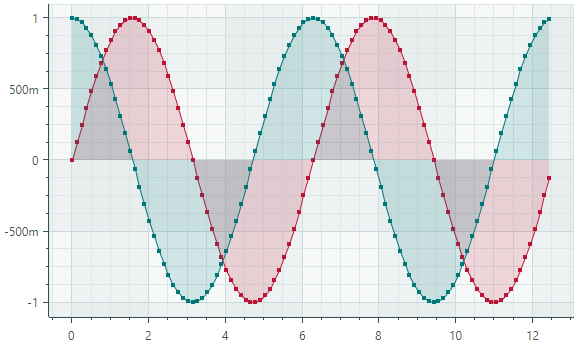
创建 Area Series View
要创建 Area Series View,请将一个 CartesianSeries 对象添加到 CartesianChart.Series 集合中,并使用 CartesianAreaSeriesView 对象初始化 CartesianSeries.View 属性。
使用 CartesianSeries.DataAdapter 属性为该系列提供数据。
以下代码展示了如何在 XAML 和 code-behind 中创建 Area Series View。
xmlns:mxc="https://schemas.eremexcontrols.net/avalonia/charts"

<mxc:CartesianChart x:Name="chartControl">
    <mxc:CartesianChart.Series>
        <mxc:CartesianSeries Name="areaSeries1" DataAdapter="{Binding DataAdapter}" >
            <mxc:CartesianAreaSeriesView Color="Green" Transparency="0.3" MarkerSize="5" ShowMarkers="True"/>
        </mxc:CartesianSeries>
    </mxc:CartesianChart.Series>
</mxc:CartesianChart>
using Eremex.AvaloniaUI.Charts;

CartesianSeries series = new CartesianSeries();
chartControl.Series.Add(series);
double[] args = new double[] { 1,2,3,4,5,6,7 };
double[] values = new double[] { 5,4,3,2,3,4,5 };
series.DataAdapter = new SortedNumericDataAdapter(args, values);
series.View = new CartesianAreaSeriesView()
{
    Color = Avalonia.Media.Colors.Green,
    Transparency = 0.3,
    ShowMarkers = true,
    MarkerSize = 5
};
Tip
如果您使用日期时间类型的参数,可能还需要初始化 X 轴,并自定义轴的刻度选项。详情请参阅:轴刻度。
示例 - 创建两个 Area Series View
以下示例创建了一个包含两个 Area Series View 的 CartesianChart 控件。系列视图的数据由 FormulaDataAdapter 对象提供,这些对象根据指定公式计算数值。此处假定窗口的数据上下文已设置为 MainWindowViewModel 对象。
所创建的系列视图使用半透明的红色和蓝色。当填充区域重叠时,两个系列和网格线均保持可见。
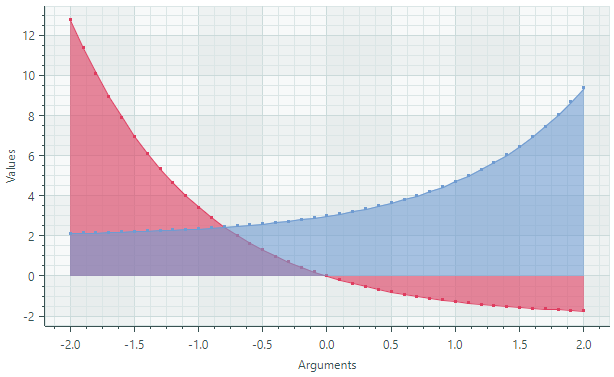
该示例演示了如何为系列视图自定义颜色、填充透明度和点标记。
X 轴和 Y 轴在 XAML 中创建,以便对其设置进行自定义。请注意使用 NumericScaleOptions.LabelFormatter 属性以自定义方式格式化轴标签。
<mx:MxWindow xmlns="https://github.com/avaloniaui"
        xmlns:x="http://schemas.microsoft.com/winfx/2006/xaml"
        xmlns:vm="using:ChartAreaSeriesView.ViewModels"
        xmlns:d="http://schemas.microsoft.com/expression/blend/2008"
        xmlns:mc="http://schemas.openxmlformats.org/markup-compatibility/2006"
        xmlns:mx="https://schemas.eremexcontrols.net/avalonia"
        xmlns:mxc="https://schemas.eremexcontrols.net/avalonia/charts"
        mc:Ignorable="d" d:DesignWidth="800" d:DesignHeight="450"
        x:Class="ChartAreaSeriesView.Views.MainWindow"
        x:DataType="vm:MainWindowViewModel"
        Icon="/Assets/EMXControls.ico"
        Title="ChartAreaSeriesView">

    <Design.DataContext>
        <vm:MainWindowViewModel/>
    </Design.DataContext>

    <mxc:CartesianChart x:Name="chartControl">
        <mxc:CartesianChart.Series>
            <mxc:CartesianSeries Name="areaSeries1" DataAdapter="{Binding AreaSeries1.DataAdapter}" >
                <mxc:CartesianAreaSeriesView Color="{Binding AreaSeries1.Color}" Transparency="0.6" MarkerSize="3" ShowMarkers="True"/>
            </mxc:CartesianSeries>
            <mxc:CartesianSeries Name="areaSeries2" DataAdapter="{Binding AreaSeries2.DataAdapter}" >
                <mxc:CartesianAreaSeriesView Color="{Binding AreaSeries2.Color}" Transparency="0.6" MarkerSize="3" ShowMarkers="True"/>
            </mxc:CartesianSeries>
        </mxc:CartesianChart.Series>

        <mxc:CartesianChart.AxesX>
            <mxc:AxisX Name="xAxis" Title="Arguments" >
                <mxc:AxisX.ScaleOptions>
                    <mxc:NumericScaleOptions LabelFormatter="{Binding ArgsLabelFormatter}"/>
                </mxc:AxisX.ScaleOptions>
            </mxc:AxisX>
        </mxc:CartesianChart.AxesX>
        <mxc:CartesianChart.AxesY>
            <mxc:AxisY Title="Values"/>
        </mxc:CartesianChart.AxesY>
    </mxc:CartesianChart>
</mx:MxWindow>
using Avalonia.Media;
using CommunityToolkit.Mvvm.ComponentModel;
using Eremex.AvaloniaUI.Charts;
using System;

namespace ChartAreaSeriesView.ViewModels;

public partial class MainWindowViewModel : ViewModelBase
{
    static double Exp(double argument) => 2 * Math.Exp(-argument) - 2;
    static double Exp2(double argument) => Math.Exp(argument) + 2;

    [ObservableProperty] SeriesViewModel areaSeries1;
    [ObservableProperty] SeriesViewModel areaSeries2;
    [ObservableProperty] FuncLabelFormatter argsLabelFormatter = new(o => String.Format("{0:n1}", o));

    const int ItemCount = 41;
    const double Step = 0.1;

    public MainWindowViewModel()
    {
        AreaSeries1 = new() { Color = Color.FromUInt32(0xffDF3C5F), DataAdapter = new FormulaDataAdapter(-2, Step, ItemCount, Exp) };
        AreaSeries2 = new() { Color = Color.FromUInt32(0xff6F9BD1), DataAdapter = new FormulaDataAdapter(-2, Step, ItemCount, Exp2) };
    }
}

public partial class SeriesViewModel : ObservableObject
{
    [ObservableProperty] Color color;
    [ObservableProperty] ISeriesDataAdapter dataAdapter;
}
Area Series View 的数据
您可以使用以下数据适配器为 Area Series View 提供数据:
数值型 X 值:
SortedNumericDataAdapterFormulaDataAdapter
日期时间型 X 值:
SortedDateTimeDataAdapterSortedTimeSpanDataAdapter
定性 X 值:
QualitativeDataAdapter
Area Series View 设置
Color— 指定用于绘制该系列的颜色。CrosshairMode— 指定十字线的图表标签是捕捉到最近的数据点,还是显示插值结果。参见 在十字线图表标签中显示精确值或插值。-
MarkerImage— 获取或设置用作自定义点标记的图像。如果未指定图像,则显示默认的方形标记。您可以使用SvgImage类实例来指定 SVG 图像。MarkerImage属性使用[Content]特性声明,这使您可以直接在 <CartesianAreaSeriesView> 标签之间定义图像。<mxc:CartesianAreaSeriesView> <SvgImage Source="avares://Demo/Assets/circle.svg" /> </mxc:CartesianAreaSeriesView>SVG 文件包含 SVG 元素的预定义颜色。要使这些颜色与您的数据系列颜色相匹配,您可以:
- 提前手动编辑源 SVG 图像文件
- 使用
MarkerImageCss属性动态自定义 SVG 元素的样式。这些样式会在渲染点标记时应用。
-
MarkerImageCss— 指定用于在运行时自定义由MarkerImage属性定义的 SVG 图像的 CSS 样式。主要用途是将 SVG 元素的颜色替换为系列颜色(Color)。在 CSS 代码中包含{0}占位符,以插入Color属性的值。例如,当
MarkerImage属性包含带有 circle 元素的 SVG 图像时,以下 CSS 代码会将circle样式设置为橙色填充(使用系列颜色)和深红色边框: -
MarkerSize— 指定点标记的大小。 ShowInCrosshair— 指定当前系列的十字线图表标签的可见性。参见 自定义十字线的图表标签。ShowMarkers— 启用或禁用点标记。Thickness— 指定线条的粗细。Transparency— 一个介于0和1之间的值,指定填充区域的透明度级别:0表示完全不透明1表示完全透明
* 本页面使用机器翻译技术翻译。