页数
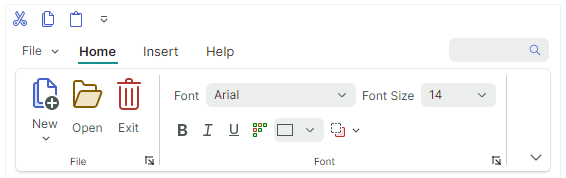
Ribbon 页面用于在 Ribbon control 的命令栏中创建选项卡。以下 image 显示了具有三个页面(Home、Insert 和 Help)的 Ribbon control:
您可以首先隐藏各个页面,然后使它们在特定时间可见并处于活动状态。请参阅以下部分了解更多信息:Page Visibility。
定义和访问 Ribbon 页面
Ribbon 页面由 RibbonPage 类对象封装。在代码隐藏中,您可以使用 RibbonControl.Pages 集合创建、访问和修改功能区页面。要在 XAML 中定义功能区页面,请在 <RibbonControl> 开始标记和结束标记之间添加 RibbonPage 对象。
<mxb:ToolbarManager IsWindowManager="True">
    <mxr:RibbonControl>
      <mxr:RibbonPage Header="Home" KeyTip="H">
        <!-- ... -->
      </mxr:RibbonPage>
      <mxr:RibbonPage Header="Insert" KeyTip="I">
        <!-- ... -->
      </mxr:RibbonPage>
      <mxr:RibbonPage Header="Help" KeyTip="P">
        <!-- ... -->
      </mxr:RibbonPage>
    </mxr:RibbonControl>
</mxb:ToolbarManager>
您还可以使用 RibbonControl.PagesSource 属性从视图模型中的业务对象集合创建功能区页面。相应的数据模板 should 定义 RibbonPage 对象并从 underlying 业务对象初始化其设置。
页面标题和内容
创建页面时,使用 RibbonPage.Header 属性指定页面标题的文本。
功能区页面的内容为 ribbon page groups。使用 RibbonPage.Groups 集合创建和访问功能区页面组。在 XAML 中,您可以在 <RibbonPage> 开始标记和结束标记之间定义页面组。
 <mxr:RibbonPage Header="Home" KeyTip="H">
    <mxr:RibbonPageGroup Header="File" IsHeaderButtonVisible="True">
        <mxb:ToolbarButtonItem Header="New" KeyTip="N" Glyph="{x:Static icons:Basic.Docs_Add}"
                               mxr:RibbonControl.DisplayMode="Large"/>
        <mxb:ToolbarButtonItem Header="Open" KeyTip="O"
                               Glyph="{x:Static icons:Basic.Folder_Open}" />
        <mxb:ToolbarButtonItem Header="Exit" KeyTip="E"
                               Glyph="{x:Static icons:Basic.Remove}" />
    </mxr:RibbonPageGroup>
    <mxr:RibbonPageGroup Header="Font" IsHeaderButtonVisible="True">
        <mxb:ToolbarCheckItemGroup ShowSeparator="True">
            <mxb:ToolbarCheckItem Header="Bold" KeyTip="B" Glyph="{x:Static icons:Basic.Font_Bold}" />
            <mxb:ToolbarCheckItem Header="Italic" KeyTip="I" Glyph="{x:Static icons:Basic.Font_Italic}" />
            <mxb:ToolbarCheckItem Header="Underline" KeyTip="U" Glyph="{x:Static icons:Basic.Font_Underline}"  />
        </mxb:ToolbarCheckItemGroup>
       <!-- ... -->
    </mxr:RibbonPageGroup>
</mxr:RibbonPage>
您还可以使用 RibbonPage.GroupsSource 属性从视图模型中的业务对象集合创建页组。相应的数据模板 should 定义 RibbonPageGroup 对象并从业务对象初始化其设置。
选定的页面
当选择页面时,页面的内容会显示给用户。用户可以通过单击页眉来选择页面。在代码中,您可以选择具有以下属性之一的页面:
RibbonControl.SelectedPageRibbonPage.IsSelected
页面可见性
使用 RibbonPage.IsVisible 属性隐藏和显示页面。页面的 position 由其在 RibbonControl.Pages 集合中的位置指定。
以下代码显示并激活最初隐藏的 Table 页面。
<mxr:RibbonControl Name="ribbon">
    <mxr:RibbonPage Header="Table" Name="pageTable" IsVisible="False">
        <!-- ... -->
    </mxr:RibbonPage>
<mxr:RibbonControl>
页面着色
在 Ribbon control 中,您可以使用自定义前景色突出显示任何页面。为此目的,请使用 RibbonPage.Foreground 属性。
<mxr:RibbonPage Header="Insert"  KeyTip="I" Foreground="Red"/>
<mxr:RibbonPage Header="Draw" KeyTip="D" Foreground="Goldenrod"/>
<mxr:RibbonPage Header="Design" KeyTip="S" Foreground="Green" />
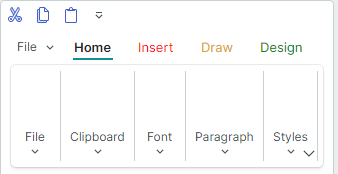
当您需要实现上下文页面(那些在特定时间临时可见并突出显示的页面)时,页面着色非常有用。您 should 手动 control 这些页面的可见性、position 和选定状态。请参阅 Selected Page 和 Page Visibility 了解更多信息。
* 本页面使用机器翻译技术翻译。