PropertyGrid 行
PropertyGrid 可以自动为绑定对象公开的属性创建行(请参阅 PropertyGridControl.SelectedObject 和 PropertyGridControl.SelectedObjects)。
默认情况下会启用自动行生成。
您可以使用 PropertyGridControl.AutoGenerateRows 选项禁用自动行生成,然后手动创建行。
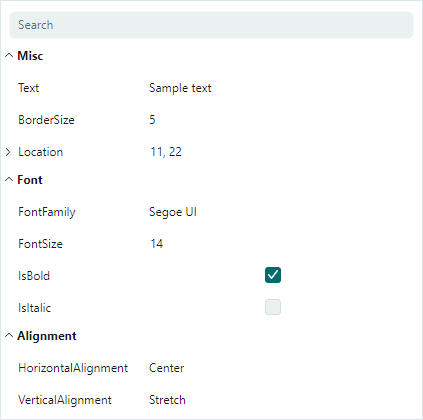
PropertyGrid 支持三种行类型:
- 常规行(数据行)(
PropertyGridRow)— 显示绑定属性的名称和值。
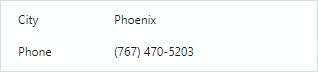
- 分类行(
PropertyGridCategoryRow)— 用于将其他行分组到类别中。用户可以折叠和展开分类行,以隐藏/显示其子项。
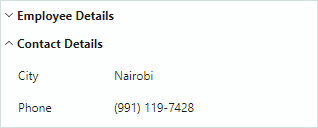
- 选项卡行(
PropertyGridTabRow)— 用于将行组织为带选项卡的界面。选项卡行不支持折叠/展开功能。
创建行
启用自动行生成功能后,空的 PropertyGrid 控件会根据从绑定对象获取的信息创建数据行和分类行:
- 会为所有公共属性创建常规行。
- 分类行根据应用于底层公共属性的
System.ComponentModel.CategoryAttribute特性生成。相应的数据行会被分组到这些类别中。
如果已手动向控件添加了任何行(例如在 XAML 中),则自动行生成不再生效。将 PropertyGridControl.AutoGenerateRows 属性设置为 false,可强制禁用自动行生成。
使用 PopulateRows 方法可在后台代码中从绑定对象生成数据行和分类行。该方法会在添加新行之前清除现有的行集合。
您可以将特定的数据注解特性应用于绑定对象的属性,从而控制所生成的 PropertyGrid 行的存在与否、显示名称和只读状态。有关详细信息,请参阅以下部分:使用特性自定义行设置。
PropertyGridControl.Rows 集合允许您访问控件的行,并添加或删除单个项。
创建数据行
使用 PropertyGridRow 对象创建数据行。要在根级别添加数据行,请将 PropertyGridRow 对象添加到 PropertyGridControl.Rows 集合中。
PropertyGridRow 类的主要设置包括:
PropertyGridRow.FieldName— 获取或设置该行所绑定的公共属性的名称。PropertyGridRow.Caption— 获取或设置行的标题。对于自动生成的行,Caption属性包含该属性的显示名称。PropertyGridRow.AllowEditing— 获取或设置是否启用值编辑操作。PropertyGridRow.EditorProperties— 允许您为该行的值分配自定义的内嵌编辑器。参见 数据编辑。
示例
以下 XAML 代码创建了三个数据行(PropertyGridRow 对象),并将它们绑定到分配给控件数据上下文的对象的字段。
xmlns:mxpg="https://schemas.eremexcontrols.net/avalonia/propertygrid"

<mxpg:PropertyGridControl x:Name="pGrid1" SelectedObject="{Binding}" Grid.Column="1">
    <mxpg:PropertyGridRow FieldName="Caption">
    </mxpg:PropertyGridRow>
    <mxpg:PropertyGridRow FieldName="OrderNo">
    </mxpg:PropertyGridRow>
    <mxpg:PropertyGridRow FieldName="InvoiceNo">
    </mxpg:PropertyGridRow>
</mxpg:PropertyGridControl>
示例
以下示例在后台代码中创建数据行:
xmlns:mxpg="https://schemas.eremexcontrols.net/avalonia/propertygrid"

<mxpg:PropertyGridControl x:Name="pGrid1" AutoGenerateRows="False"
 SelectedObject="{Binding}" Grid.Column="1">
</mxpg:PropertyGridControl>
using Eremex.AvaloniaUI.Controls.PropertyGrid;

pGrid1.Rows.Add(new PropertyGridRow() { FieldName = "Caption" });
pGrid1.Rows.Add(new PropertyGridRow() { FieldName = "OrderNo" });
pGrid1.Rows.Add(new PropertyGridRow() { FieldName = "InvoiceNo" });
创建分类行
PropertyGrid 可以根据应用于底层公共属性的 System.ComponentModel.CategoryAttribute 特性生成分类行。相应的数据行会被分组到这些分类行中。
您可以禁用自动行生成,并创建一组自定义的数据行和分类行。使用 PropertyGridCategoryRow 对象定义分类行。将 PropertyGridCategoryRow 对象添加到 PropertyGridControl.Rows 集合中,即可在根级别显示它们。
PropertyGridCategoryRow 类的主要设置包括:
PropertyGridCategoryRow.Rows— 作为分类行子项显示的行集合。通常,您会将数据行(PropertyGridRow对象)添加到该集合中。PropertyGridCategoryRow.Caption— 获取或设置分类行的显示名称。对于自动生成的分类行,此属性返回CategoryAttribute的值。
示例
以下 XAML 代码创建了两个分类行(Name 和 Details)。它们分别有一个和两个数据行作为子项。
xmlns:mxpg="https://schemas.eremexcontrols.net/avalonia/propertygrid"
<mxpg:PropertyGridControl x:Name="pGrid1" SelectedObject="{Binding}" Grid.Column="1">
    <mxpg:PropertyGridCategoryRow Caption="Name">
        <mxpg:PropertyGridRow FieldName="Caption">
        </mxpg:PropertyGridRow>
    </mxpg:PropertyGridCategoryRow>
    <mxpg:PropertyGridCategoryRow Caption="Details">
        <mxpg:PropertyGridRow FieldName="OrderNo">
        </mxpg:PropertyGridRow>
        <mxpg:PropertyGridRow FieldName="InvoiceNo">
        </mxpg:PropertyGridRow>
    </mxpg:PropertyGridCategoryRow>
</mxpg:PropertyGridControl>
示例
以下示例创建分类行,并在后台代码中将数据行放置到所创建的类别中。
xmlns:mxpg="https://schemas.eremexcontrols.net/avalonia/propertygrid"

<mxpg:PropertyGridControl x:Name="pGrid1" AutoGenerateRows="False"
 SelectedObject="{Binding}" Grid.Column="1">
</mxpg:PropertyGridControl>
using Eremex.AvaloniaUI.Controls.PropertyGrid;

PropertyGridCategoryRow categoryRowName = new PropertyGridCategoryRow()
{
    Caption = "Name"
};
pGrid1.Rows.Add(categoryRowName);
categoryRowName.Rows.Add(new PropertyGridRow()
{
    FieldName = "Caption"
});

PropertyGridCategoryRow categoryRowDetails = new PropertyGridCategoryRow()
{
    Caption = "Details"
};
pGrid1.Rows.Add(categoryRowDetails);
categoryRowDetails.Rows.Add(new PropertyGridRow() { FieldName = "OrderNo" });
categoryRowDetails.Rows.Add(new PropertyGridRow() { FieldName = "InvoiceNo" });
创建选项卡行
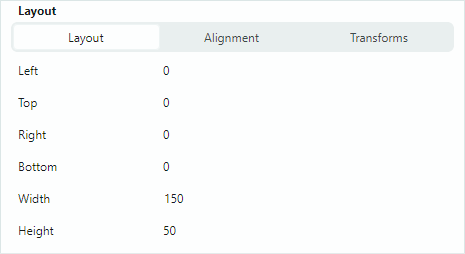
选项卡行(PropertyGridTabRow)允许您将若干行分组到带选项卡的界面中。它由标题、选项卡切换器和客户区组成。当用户选择某个选项卡时,客户区会显示与所选选项卡对应的一组属性。下图展示了带有两个选项卡行(Appearance 和 Layout)的 PropertyGrid 控件:
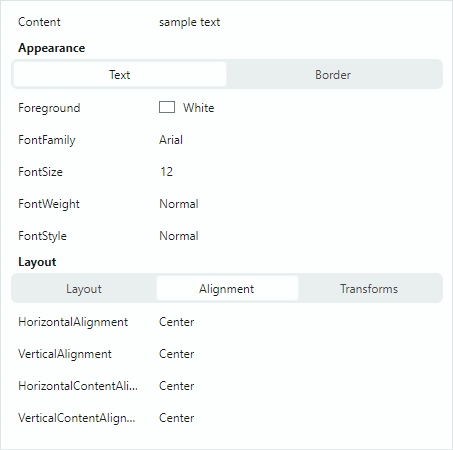
控件会根据选项卡行的子项(PropertyGridTabRowItem 对象)填充选项卡集合。每个 PropertyGridTabRowItem 对象都定义了与该选项卡关联的一组行。
示例
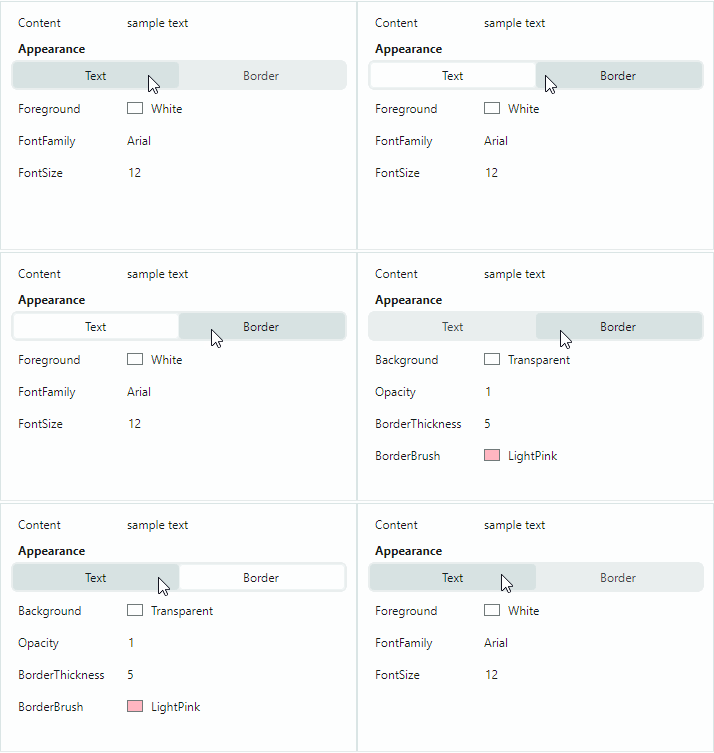
以下示例创建了由两个选项卡(Text 和 Border)组成的 Appearance 选项卡行。每个选项卡被选中时都会显示其自己的一组属性。
xmlns:mxpg="https://schemas.eremexcontrols.net/avalonia/propertygrid"
xmlns:mxe="https://schemas.eremexcontrols.net/avalonia/editors"

<UserControl.Resources>
    <DataTemplate x:Key="spinEditorTemplate1">
        <mxe:SpinEditor x:Name="PART_Editor" HorizontalContentAlignment="Stretch"/>
    </DataTemplate>
    <DataTemplate x:Key="spinEditorTemplate2">
        <mxe:SpinEditor x:Name="PART_Editor" HorizontalContentAlignment="Stretch"
         Increment="0.1"/>
    </DataTemplate>
</UserControl.Resources>

<mxpg:PropertyGridControl x:Name="propertyGrid"
                          SelectedObject="{Binding}"
                          UseModernAppearance="True"
                          ImmediatePostEditor="True"
                          BorderThickness="1,0" Grid.Column="1"
                          ShowSearchPanel="False"
                          >
    <mxpg:PropertyGridRow FieldName="Content"/>

    <mxpg:PropertyGridTabRow Caption="Appearance">
        <mxpg:PropertyGridTabRowItem Header="Text">
            <mxpg:PropertyGridRow FieldName="Foreground"/>
            <mxpg:PropertyGridRow FieldName="FontFamily">
                <mxpg:PropertyGridRow.EditorProperties>
                    <mxe:ComboBoxEditorProperties
                        IsTextEditable="False"
                        ItemsSource="{Binding Source={x:Static FontManager.Current},
                         Path=SystemFonts}"
                        ValueMember="Name" DisplayMember="Name"/>
                </mxpg:PropertyGridRow.EditorProperties>
            </mxpg:PropertyGridRow>
            <mxpg:PropertyGridRow FieldName="FontSize"
             CellTemplate="{StaticResource spinEditorTemplate1}"/>

        </mxpg:PropertyGridTabRowItem>

        <mxpg:PropertyGridTabRowItem Header="Border">
            <mxpg:PropertyGridRow FieldName="Background"/>
            <mxpg:PropertyGridRow FieldName="Opacity"
             CellTemplate="{StaticResource spinEditorTemplate2}"/>
            <mxpg:PropertyGridRow FieldName="BorderThickness"
             CellTemplate="{StaticResource spinEditorTemplate1}"/>
            <mxpg:PropertyGridRow FieldName="BorderBrush"/>
        </mxpg:PropertyGridTabRowItem>
    </mxpg:PropertyGridTabRow>
</mxpg:PropertyGridControl>
使用特性自定义行设置
您可以将特性应用于绑定对象的属性,以自定义 PropertyGridControl 中相应行的可见性状态、外观和行为设置。支持以下特性:
Browsable 特性
System.ComponentModel.BrowsableAttribute 特性控制与绑定对象中特定属性相对应的 PropertyGrid 行是否存在。要阻止创建某个行,请对相关属性应用 Browsable(false) 特性。
public partial class MyBusinessObject : ObservableObject
{
    [Browsable(false)]
    public string Caption {
        get;set;
    }
}
Category 特性
System.ComponentModel.CategoryAttribute 特性为属性设置类别名称。当 PropertyGrid 检测到某个属性应用了该特性时,控件会创建一个具有指定类别名称的分类行,并将相应的数据行放置在该分类行内。
DisplayName 特性
System.ComponentModel.DisplayNameAttribute 特性为属性指定一个自定义显示名称。指定该特性后,PropertyGrid 控件会将此显示名称用作相应行的标题。
ReadOnly 特性
System.ComponentModel.ReadOnlyAttribute 特性将属性标记为只读,并阻止对 PropertyGrid 控件中相应行进行编辑操作。
TypeConverter 特性
System.ComponentModel.TypeConverterAttribute 特性允许您为属性关联一个 TypeConverter 对象(System.ComponentModel.TypeConverter 的派生类)。PropertyGrid 使用该转换器在显示值和编辑值之间进行转换。类型转换器的功能会在以下情况下被调用:
- 当控件即将在单元格中显示值时,或单元格的编辑值发生更改时。
TypeConverter会将单元格的编辑值转换为显示值。 - 当用户编辑某个单元格后,将焦点移到另一个单元格时。
TypeConverter会执行反向转换。
自定义行模板
数据行的默认渲染由标题区域和值区域组成。
您可以使用 CellTemplate 属性来指定用于渲染行值区域的模板。有关详细信息,请参阅以下主题:数据编辑 和 自定义编辑器。
使用 PropertyGridRow.RowTemplate 属性可以按自定义方式渲染整行(标题和值区域)。该属性指定一个自定义行模板。
示例 - 自定义行模板
以下代码将 PropertyGrid 绑定到一个 MyBusinessObject 对象,该对象分别拥有 Integer 和 Point 类型的 BorderSize 和 Location 属性。代码定义了三个 PropertyGridRow 对象,其中两个使用了自定义模板。这些模板包含用于呈现和编辑 BorderSize 和 Location 属性的自定义控件。
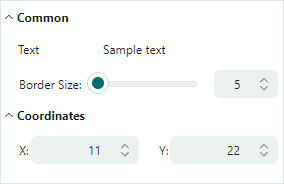
BorderSize 属性的行模板显示一个标签、一个滑块和一个 SpinEditor。滑块和编辑器都绑定到目标 BorderSize 属性。
用于编辑 Location 属性的行模板包含两个标签和两个 SpinEditor。相应的 PropertyGridRow 对象绑定到 Location 属性,而 SpinEditor 则绑定到嵌套字段 X 和 Y。另一种做法是为编辑器使用 Location.X 和 Location.Y 绑定路径。
xmlns:mxpg="https://schemas.eremexcontrols.net/avalonia/propertygrid"
xmlns:mxe="https://schemas.eremexcontrols.net/avalonia/editors"

<Window.DataContext>
    <local:SampleViewModel/>
</Window.DataContext>

<mxpg:PropertyGridControl
            x:Name="propertyGrid1"
            SelectedObject="{Binding Path=MyBusinessObject}"
            UseModernAppearance="True"
            Margin="10"
            BorderThickness="1"
            ShowSearchPanel="False"
            >

    <mxpg:PropertyGridCategoryRow Caption="Common">

        <mxpg:PropertyGridRow FieldName="Text" />

        <mxpg:PropertyGridRow>
            <mxpg:PropertyGridRow.RowTemplate>
                <DataTemplate>
                    <Grid ColumnDefinitions="Auto, 2*, *" Margin="18,5,5,5">
                        <TextBlock Text="Border Size: "  VerticalAlignment="Center"
                         Classes="PropertyGridRow_Modern"/>
                        <Slider Value="{Binding BorderSize,
                         Converter={local:MyDoubleToIntConverter}}"
                         Maximum="500" Focusable="False" Margin="0,0,5,0" Grid.Column="1" />
                        <mxe:SpinEditor EditorValue="{Binding BorderSize}" Maximum="500"
                         Minimum="0" Grid.Column="2" />
                    </Grid>
                </DataTemplate>
            </mxpg:PropertyGridRow.RowTemplate>
        </mxpg:PropertyGridRow>
    </mxpg:PropertyGridCategoryRow>

    <mxpg:PropertyGridCategoryRow Caption="Coordinates">
        <mxpg:PropertyGridRow FieldName="Location">
            <mxpg:PropertyGridRow.RowTemplate>
                <DataTemplate>
                    <Grid ColumnDefinitions="*, 20, *"  Margin="18,5,5,5" Grid.Column="0">
                        <Grid ColumnDefinitions="Auto, *" >
                            <TextBlock Text="X:" HorizontalAlignment="Right"
                             Classes="PropertyGridRow_Modern" VerticalAlignment="Center"/>
                            <mxe:SpinEditor EditorValue="{Binding X}" Minimum="0"
                             Maximum="10000" Grid.Column="1" VerticalAlignment="Center"/>
                        </Grid>
                        <Grid ColumnDefinitions="Auto, *" Grid.Column="2">
                            <TextBlock Text="Y:" HorizontalAlignment="Right"
                             Classes="PropertyGridRow_Modern" VerticalAlignment="Center"/>
                            <mxe:SpinEditor EditorValue="{Binding Y}" Minimum="0"
                             Maximum="10000" Grid.Column="1" VerticalAlignment="Center"/>
                        </Grid>
                    </Grid>
                </DataTemplate>
            </mxpg:PropertyGridRow.RowTemplate>
        </mxpg:PropertyGridRow>
    </mxpg:PropertyGridCategoryRow>
</mxpg:PropertyGridControl>
using System.Drawing;
using CommunityToolkit.Mvvm.ComponentModel;

public partial class SampleViewModel : ViewModelBase
{
    [ObservableProperty]
    MyBusinessObject myBusinessObject = new MyBusinessObject();
}
public partial class MyBusinessObject : ViewModelBase
{
    [ObservableProperty]
    string text = "Sample text";

    [ObservableProperty]
    double borderSize = 5;

    [ObservableProperty]
    string fontFamily = FontManager.Current.DefaultFontFamily.Name;

    [ObservableProperty]
    double fontSize = 14;

    [ObservableProperty]
    Point location = new Point(11, 22);
}

public class ViewModelBase : ObservableObject
{
}
从行视图模型集合生成行(MVVM)
PropertyGrid 允许您使用 MVVM 设计模式,用行填充控件,并从视图模型初始化行。
以下 PropertyGrid 属性支持 MVVM 设计模式:
PropertyGridControl.RowsSource— 将渲染为根级行的行视图模型来源。PropertyGridCategoryRow.RowsSource— 将渲染为分类行子项的行视图模型来源。PropertyGridControl.RowsDataTemplates— 定义PropertyGridRow和PropertyGridCategoryRow对象的数据模板集合,用于渲染RowsSource集合中相应的行视图模型。
示例
以下教程演示了填充行的 MVVM 方法。此示例从视图模型初始化 PropertyGrid 行,并创建如下所示的界面:
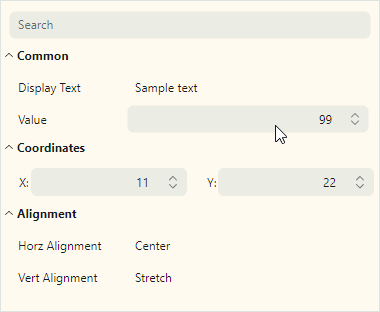
该示例根据 CategoryRowViewModel 对象创建 Common、Coordinates 和 Alignment 分类行(PropertyGridCategoryRow 对象)。
以下视图模型用于在分类行内创建常规行:
-
DefaultRowViewModel — 对应默认行(具有默认设置的
PropertyGridRow对象)的视图模型。默认行的值数据类型决定了内嵌编辑器的类型。DefaultRowViewModel 对象用于创建 Display Text、Horz Alignment 和 Vert Alignment 这几行。 -
NumericSpinEditorRowViewModel — 对应带有内嵌 SpinEditor 的 PropertyGrid 行的视图模型。该视图模型用于创建 Value 行。
-
PointEditorViewModel — 对应带有自定义行模板的 PropertyGrid 行的视图模型。该行模板显示两个排成一行的 SpinEditor 和两个标签,用于呈现和编辑
Point数据类型的值。
步骤:
-
定义一个目标业务对象,其数据需要在 PropertyGrid 中显示/编辑。使用
PropertyGridControl.SelectedObject成员将该对象绑定到控件。public partial class MyBusinessObject : ViewModelBase { [ObservableProperty] string text = "Sample text"; [ObservableProperty] int value = 99; [ObservableProperty] double borderSize = 5; [property: Category("Font")] [ObservableProperty] string fontFamily = FontManager.Current.DefaultFontFamily.Name; [property: Category("Font")] [ObservableProperty] double fontSize = 14; [property: Category("Font")] [ObservableProperty] bool isBold = true; [property: Category("Font")] [ObservableProperty] bool isItalic; [property: Category("Alignment")] [ObservableProperty] HorizontalAlignment horizontalAlignment = HorizontalAlignment.Center; [property: Category("Alignment")] [ObservableProperty] VerticalAlignment verticalAlignment; [ObservableProperty] Point location = new Point(11, 22); } -
创建行视图模型类,其中包含用于初始化 PropertyGrid 行的设置(例如,用于初始化行的
PropertyGridRow.FieldName和PropertyGridRow.Caption属性的设置)。每个行视图模型通常都会公开一组独特的属性和功能。分类行的视图模型应公开一个包含子行视图模型的IEnumerable对象。// A View Model that corresponds to regular data rows. public class DefaultRowViewModel { // The path to a target object's property. public string? FieldName { get; set; } // The property's display name. public string? Caption { get; set; } } // A View Model that corresponds to category rows. public class CategoryRowViewModel { // The category's display name. public string? Caption { get; set; } // Child row View Models that will be rendered as child rows. public IEnumerable? Items { get; set; } } // A View Model that corresponds to a data row with an embedded SpinEditor // used to edit numeric values. public class NumericSpinEditorRowViewModel { public string? FieldName { get; set; } public string? Caption { get; set; } // The minimum allowed value for the SpinEditor. public int? MinValue { get; set; } // The maximum allowed value for the SpinEditor. public int? MaxValue { get; set; } } // A View Model for a data row that uses two standalone SpinEditors // to edit values of the Point data type. // This data row will be created from a custom row template. public class PointEditorViewModel { public string? FieldName { get; set; } } -
创建一个
IEnumerable对象,按照 PropertyGrid 应当用来显示相应行的顺序,存储行视图模型的实例。public partial class SampleViewModel : ViewModelBase { [ObservableProperty] IEnumerable myRowSource = GetMyRowSource(); public static IEnumerable GetMyRowSource() { return new List<object> { new CategoryRowViewModel() { Caption = "Common", Items = new List<object> { new DefaultRowViewModel() { FieldName = "Text", Caption = "Display Text" }, new NumericSpinEditorRowViewModel() { FieldName = "Value", Caption = "Value", MinValue=1, MaxValue=100 }, } }, new CategoryRowViewModel() { Caption = "Coordinates", Items = new List<object> { new PointEditorViewModel() { FieldName = "Location" } } }, new CategoryRowViewModel() { Caption = "Alignment", Items = new List<object> { new DefaultRowViewModel() { FieldName = "HorizontalAlignment", Caption = "Horz Alignment" }, new DefaultRowViewModel() { FieldName = "VerticalAlignment", Caption = "Vert Alignment" }, } } }; } } -
将
PropertyGridControl.RowsSource属性设置为所创建的IEnumerable对象。xmlns:local="using:PropertyGridSample" xmlns:mxpg="https://schemas.eremexcontrols.net/avalonia/propertygrid" <Window.DataContext> <local:SampleViewModel/> </Window.DataContext> <mxpg:PropertyGridControl SelectedObject="{Binding MyBusinessObject}" RowsSource="{Binding MyRowSource}" ... > ... </mxpg:PropertyGridControl> -
使用
PropertyGridControl.RowsDataTemplates集合创建数据模板,将行视图模型映射为 PropertyGrid 行。每个数据模板都应定义一个PropertyGridRow或PropertyGridCategoryRow对象,并使用相应行视图模型中包含的信息来初始化该行的设置。定义
PropertyGridCategoryRow对象时,请将PropertyGridCategoryRow.RowsSource属性设置为子行视图模型的来源。<mxpg:PropertyGridControl ...> <mxpg:PropertyGridControl.RowsDataTemplates> <DataTemplates> <DataTemplate DataType="local:CategoryRowViewModel"> <mxpg:PropertyGridCategoryRow Caption="{Binding Path=Caption}" RowsSource="{Binding Path=Items}"/> </DataTemplate> <DataTemplate DataType="local:DefaultRowViewModel"> <mxpg:PropertyGridRow FieldName="{Binding Path=FieldName}" Caption="{Binding Path=Caption}"/> </DataTemplate> <DataTemplate DataType="local:NumericSpinEditorRowViewModel"> <mxpg:PropertyGridRow FieldName="{Binding Path=FieldName}"> <mxpg:PropertyGridRow.EditorProperties > <mxe:SpinEditorProperties Minimum="{Binding MinValue}" Maximum="{Binding MaxValue}"/> </mxpg:PropertyGridRow.EditorProperties> </mxpg:PropertyGridRow> </DataTemplate> <DataTemplate DataType="local:PointEditorViewModel"> <mxpg:PropertyGridRow FieldName="{Binding Path=FieldName}" RowTemplate="{DynamicResource ResourceKey=pointEditorTemplate}"/> </DataTemplate> </DataTemplates> </mxpg:PropertyGridControl.RowsDataTemplates> </mxpg:PropertyGridControl>Tip
Avalonia UI 支持在逻辑树中对目标
DataTemplate进行分层查找。除了使用RowsDataTemplates属性外,您还可以在控件的父级(或更上层)、Window或Application对象的DataTemplates集合中定义模板。 -
定义自定义的 pointEditorTemplate 模板,以渲染与 PointEditorViewModel 对象对应的
PropertyGridRow。<Window.Resources> <DataTemplate x:Key="pointEditorTemplate"> <Grid ColumnDefinitions="*, 20, *" Margin="18,5,5,5" Grid.Column="0"> <Grid ColumnDefinitions="Auto, *" > <TextBlock Text="X:" HorizontalAlignment="Right" Classes="PropertyGridRow_Modern" VerticalAlignment="Center"/> <mxe:SpinEditor EditorValue="{Binding X}" Minimum="0" Maximum="10000" Grid.Column="1" VerticalAlignment="Center"/> </Grid> <Grid ColumnDefinitions="Auto, *" Grid.Column="2"> <TextBlock Text="Y:" HorizontalAlignment="Right" Classes="PropertyGridRow_Modern" VerticalAlignment="Center"/> <mxe:SpinEditor EditorValue="{Binding Y}" Minimum="0" Maximum="10000" Grid.Column="1" VerticalAlignment="Center"/> </Grid> </Grid> </DataTemplate> </Window.Resources>
完整代码
以下是本教程的完整代码。
xmlns:mxpg="https://schemas.eremexcontrols.net/avalonia/propertygrid"
xmlns:local="using:PropertyGridSample"
<Window.DataContext>
<local:SampleViewModel/>
</Window.DataContext>
<Window.Resources>
<DataTemplate x:Key="pointEditorTemplate">
<Grid ColumnDefinitions="*, 20, *" Margin="18,5,5,5" Grid.Column="0">
<Grid ColumnDefinitions="Auto, *" >
<TextBlock Text="X:" HorizontalAlignment="Right"
Classes="PropertyGridRow_Modern" VerticalAlignment="Center"/>
<mxe:SpinEditor EditorValue="{Binding X}" Minimum="0" Maximum="10000"
Grid.Column="1" VerticalAlignment="Center"/>
</Grid>
<Grid ColumnDefinitions="Auto, *" Grid.Column="2">
<TextBlock Text="Y:" HorizontalAlignment="Right"
Classes="PropertyGridRow_Modern" VerticalAlignment="Center"/>
<mxe:SpinEditor EditorValue="{Binding Y}" Minimum="0" Maximum="10000"
Grid.Column="1" VerticalAlignment="Center"/>
</Grid>
</Grid>
</DataTemplate>
</Window.Resources>
<mxpg:PropertyGridControl
Background="FloralWhite" BorderThickness="1"
SelectedObject="{Binding MyBusinessObject}"
RowsSource="{Binding MyRowSource}"
UseModernAppearance="true"
Margin="10">
<mxpg:PropertyGridControl.RowsDataTemplates>
<DataTemplates>
<DataTemplate DataType="local:CategoryRowViewModel">
<mxpg:PropertyGridCategoryRow
Caption="{Binding Path=Caption}"
RowsSource="{Binding Path=Items}"/>
</DataTemplate>
<DataTemplate DataType="local:DefaultRowViewModel">
<mxpg:PropertyGridRow
FieldName="{Binding Path=FieldName}"
Caption="{Binding Path=Caption}"/>
</DataTemplate>
<DataTemplate DataType="local:NumericSpinEditorRowViewModel">
<mxpg:PropertyGridRow FieldName="{Binding Path=FieldName}">
<mxpg:PropertyGridRow.EditorProperties >
<mxe:SpinEditorProperties
Minimum="{Binding MinValue}"
Maximum="{Binding MaxValue}"/>
</mxpg:PropertyGridRow.EditorProperties>
</mxpg:PropertyGridRow>
</DataTemplate>
<DataTemplate DataType="local:PointEditorViewModel">
<mxpg:PropertyGridRow
FieldName="{Binding Path=FieldName}"
RowTemplate="{DynamicResource ResourceKey=pointEditorTemplate}"/>
</DataTemplate>
</DataTemplates>
</mxpg:PropertyGridControl.RowsDataTemplates>
</mxpg:PropertyGridControl>
using Eremex.AvaloniaUI.Controls.Common;
using Avalonia.Layout;
using System.Drawing;
using CommunityToolkit.Mvvm.ComponentModel;
namespace PropertyGridSample;
public partial class SampleViewModel : ViewModelBase
{
[ObservableProperty]
IEnumerable myRowSource = GetMyRowSource();
[ObservableProperty]
MyBusinessObject myBusinessObject = new MyBusinessObject();
public static IEnumerable GetMyRowSource()
{
return new List<object>
{
new CategoryRowViewModel()
{
Caption = "Common",
Items = new List<object>
{
new DefaultRowViewModel()
{
FieldName = "Text",
Caption = "Display Text"
},
new NumericSpinEditorRowViewModel()
{
FieldName = "Value", Caption = "Value",
MinValue=1, MaxValue=100
},
}
},
new CategoryRowViewModel()
{
Caption = "Coordinates",
Items = new List<object>
{
new PointEditorViewModel() { FieldName = "Location" }
}
},
new CategoryRowViewModel()
{
Caption = "Alignment",
Items = new List<object>
{
new DefaultRowViewModel()
{
FieldName = "HorizontalAlignment",
Caption = "Horz Alignment"
},
new DefaultRowViewModel()
{
FieldName = "VerticalAlignment",
Caption = "Vert Alignment"
},
}
}
};
}
}
// A View Model that corresponds to regular data rows.
public class DefaultRowViewModel
{
// The path to a target object's property.
public string? FieldName { get; set; }
// The property's display name.
public string? Caption { get; set; }
}
// A View Model that corresponds to category rows.
public class CategoryRowViewModel
{
// The category's display name.
public string? Caption { get; set; }
// Child row View Models that will be rendered as child rows.
public IEnumerable? Items { get; set; }
}
// A View Model that corresponds to a data row
// with an embedded SpinEditor used to edit numeric values.
public class NumericSpinEditorRowViewModel
{
public string? FieldName { get; set; }
public string? Caption { get; set; }
// The minimum allowed value for the SpinEditor.
public int? MinValue { get; set; }
// The maximum allowed value for the SpinEditor.
public int? MaxValue { get; set; }
}
// A View Model for a data row that uses two standalone SpinEditors
// to edit values of the Point data type.
// This data row will be created from a custom row template.
public class PointEditorViewModel
{
public string? FieldName { get; set; }
}
public partial class MyBusinessObject : ViewModelBase
{
    [ObservableProperty]
    string text = "Sample text";

    [ObservableProperty]
    int value = 99;

    [ObservableProperty]
    double borderSize = 5;

    [property: Category("Font")]
    [ObservableProperty]
    string fontFamily = FontManager.Current.DefaultFontFamily.Name;

    [property: Category("Font")]
    [ObservableProperty]
    double fontSize = 14;

    [property: Category("Font")]
    [ObservableProperty]
    bool isBold = true;

    [property: Category("Font")]
    [ObservableProperty]
    bool isItalic;

    [property: Category("Alignment")]
    [ObservableProperty]
    HorizontalAlignment horizontalAlignment = HorizontalAlignment.Center;

    [property: Category("Alignment")]
    [ObservableProperty]
    VerticalAlignment verticalAlignment;

    [ObservableProperty]
    Point location = new Point(11, 22);
}
* 本页面使用机器翻译技术翻译。