Bands
您可以使用列组(Column Band)在视觉上将列组合在一起。TreeListControl 会将列组显示为列标题上方的额外标题。列组标题和列标题都可以包含文本、图像或自定义内容。您还可以创建具有无限嵌套层级的分层列组。
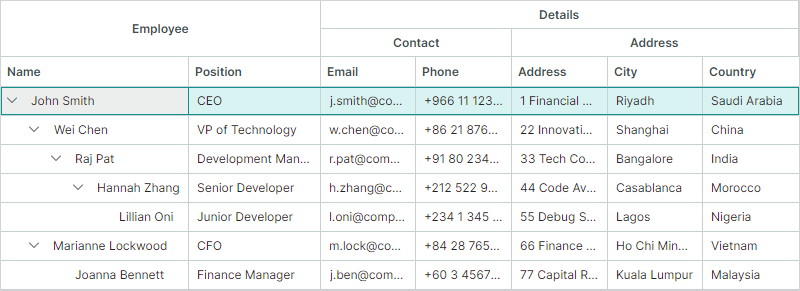
下图展示了一个带有四个列组('Employee'、'Details'、'Contact' 和 'Address')的 TreeList 控件:
以下方法可用于生成列组:
手动创建列组
请按照以下步骤手动创建列组:
-
创建列组对象(
TreeListBand类的实例)并将其添加到TreeListControl.Bands集合中。使用
TreeListBand.BandName属性为创建的列组指定唯一名称。<mxtl:TreeListControl.Bands> <mxtl:TreeListBand BandName="Employee" HeaderHorizontalAlignment="Center"/> <mxtl:TreeListBand BandName="Details" HeaderHorizontalAlignment="Center"/> </mxtl:TreeListControl.Bands>您可以创建分层的列组结构。要创建嵌套列组:
- 在代码后置文件(code-behind)中:将列组添加到
TreeListBand.Bands集合中。 - 在 XAML 中:在开始和结束
TreeListBand标签之间直接定义嵌套列组。
<mxtl:TreeListBand BandName="Details" HeaderHorizontalAlignment="Center"> <mxtl:TreeListBand BandName="DetailsAddress" Header="Address" HeaderHorizontalAlignment="Center"/> <mxtl:TreeListBand BandName="DetailsContact" Header="Contact" HeaderHorizontalAlignment="Center"/> </mxtl:TreeListBand>TreeListBand.Header属性允许您为列组指定自定义内容(例如自定义文本)。如果未设置此属性,列组标题将显示TreeListBand.BandName属性的值。 - 在代码后置文件(code-behind)中:将列组添加到
-
通过将每个列的
TreeListColumn.BandName属性设置为对应的列组名称(TreeListBand.BandName),将列与特定列组关联起来。<mxtl:TreeListControl.Columns> <mxtl:TreeListColumn Width="150" FieldName="Name" BandName="Employee"/> <mxtl:TreeListColumn Width="*" FieldName="City" BandName="DetailsAddress"/> <mxtl:TreeListColumn Width="*" FieldName="Phone" BandName="DetailsContact"/> <!-- ... --> </mxtl:TreeListControl.Columns>
TreeListControl 会根据列的 TreeListColumn.VisibleIndex 属性排列列。控件不会自动重新排列列以按列组分组。
参阅列和列组的顺序
相关 API
TreeListBand类 —— 封装一个列组。TreeListBand.BandName—— 用于标识列组并将其与列关联的唯一名称。TreeListColumn.BandName—— 与该列关联的列组名称。此值与TreeListBand.BandName属性的值相匹配。TreeListControl.Bands—— 根列组的集合。TreeListBand.Bands—— 此列组的子列组集合。
示例 - 在 TreeList 控件中创建列组
以下示例创建列组并将其分配给 TreeList 列,如下图所示:
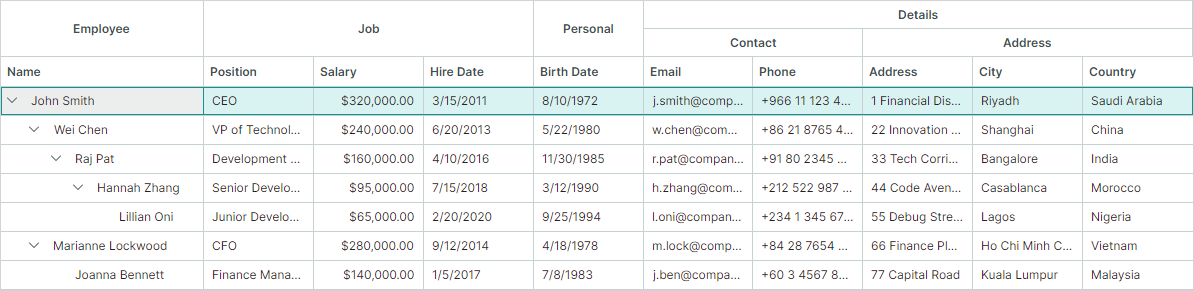
- "Employee"、"Job"、"Personal"、"Address" 和 "Contact" 列组与 TreeList 列相关联。
- "Details" 列组拥有两个嵌套列组("Address" 和 "Contact")。此列组不直接与列关联。
每个列组都通过 TreeListBand.BandName 属性分配了唯一名称。要将列链接到特定列组,需将 TreeListColumn.BandName 属性设置为目标列组的 BandName 值。
TreeListControl.Bands 属性定义了列组的结构。要创建嵌套列组,请将其定义为父列组的子元素。
<!-- MainWindow.axaml file -->
<mx:MxWindow xmlns="https://github.com/avaloniaui"
        xmlns:x="http://schemas.microsoft.com/winfx/2006/xaml"
        xmlns:vm="using:TreeListColumnBands.ViewModels"
        xmlns:d="http://schemas.microsoft.com/expression/blend/2008"
        xmlns:mc="http://schemas.openxmlformats.org/markup-compatibility/2006"
        xmlns:mx="https://schemas.eremexcontrols.net/avalonia"
        xmlns:mxtl="https://schemas.eremexcontrols.net/avalonia/treelist"
        xmlns:mxe="https://schemas.eremexcontrols.net/avalonia/editors"
        mc:Ignorable="d" d:DesignWidth="800" d:DesignHeight="450"
        x:Class="TreeListColumnBands.Views.MainWindow"
        x:DataType="vm:MainWindowViewModel"
        Icon="/Assets/EMXControls.ico"
        Title="TreeListColumnBands">

    <Design.DataContext>
        <!-- This only sets the DataContext for the previewer in an IDE-->
        <vm:MainWindowViewModel/>
    </Design.DataContext>

    <mxtl:TreeListControl Name="employeeTreeList" AutoGenerateColumns="False"
                          ItemsSource="{Binding Employees}"
                          ChildrenFieldName="Subordinates"
                          HasChildrenFieldName="HasSubordinates"
                          >

        <mxtl:TreeListControl.Bands>
            <mxtl:TreeListBand BandName="Employee" HeaderHorizontalAlignment="Center"/>
            <mxtl:TreeListBand BandName="Job" HeaderHorizontalAlignment="Center"/>
            <mxtl:TreeListBand BandName="Personal" HeaderHorizontalAlignment="Center"/>
            <mxtl:TreeListBand BandName="Details" HeaderHorizontalAlignment="Center" HeaderToolTip="Contact and location information">
                <mxtl:TreeListBand BandName="DetailsAddress" Header="Address" HeaderHorizontalAlignment="Center"/>
                <mxtl:TreeListBand BandName="DetailsContact" Header="Contact" HeaderHorizontalAlignment="Center"/>
            </mxtl:TreeListBand>
        </mxtl:TreeListControl.Bands>

        <mxtl:TreeListControl.Columns>
            <mxtl:TreeListColumn Width="150" FieldName="Name" BandName="Employee"/>
            <mxtl:TreeListColumn Width="*" FieldName="Position" BandName="Job"/>
            <mxtl:TreeListColumn Width="*" FieldName="Salary" BandName="Job">
                <mxtl:TreeListColumn.EditorProperties>
                    <mxe:TextEditorProperties DisplayFormatString="c"/>
                </mxtl:TreeListColumn.EditorProperties>
            </mxtl:TreeListColumn>
            <mxtl:TreeListColumn Width="*" FieldName="HireDate" BandName="Job"/>
            <mxtl:TreeListColumn Width="*" FieldName="BirthDate" BandName="Personal"/>
            <mxtl:TreeListColumn Width="*" FieldName="Email" BandName="DetailsContact"/>
            <mxtl:TreeListColumn Width="*" FieldName="Phone" BandName="DetailsContact"/>
            <mxtl:TreeListColumn Width="*" FieldName="Address" BandName="DetailsAddress"/>
            <mxtl:TreeListColumn Width="*" FieldName="City" BandName="DetailsAddress"/>
            <mxtl:TreeListColumn Width="*" FieldName="Country" BandName="DetailsAddress"/>
        </mxtl:TreeListControl.Columns>
    </mxtl:TreeListControl>
</mx:MxWindow>
//MainWindow.axaml.cs file
using Avalonia.Controls;
using Eremex.AvaloniaUI.Controls.Common;
using TreeListColumnBands.ViewModels;

namespace TreeListColumnBands.Views;
public partial class MainWindow : MxWindow
{
    public MainWindow()
    {
        this.DataContext = new MainWindowViewModel();
        InitializeComponent();
        employeeTreeList.Loaded += EmployeeTreeList_Loaded;
    }

    private void EmployeeTreeList_Loaded(object? sender, Avalonia.Interactivity.RoutedEventArgs e)
    {
        employeeTreeList.ExpandAllNodes();
    }
}
//MainWindowViewModel.cs file
using System.Collections.Generic;
using System;
using CommunityToolkit.Mvvm.ComponentModel;
using System.Collections.ObjectModel;

namespace TreeListColumnBands.ViewModels;
public partial class MainWindowViewModel : ViewModelBase
{
    public MainWindowViewModel()
    {
        Employees = EmployeeDataGenerator.GenerateData();
    }
    [ObservableProperty]
    public ObservableCollection<Employee> employees = new();
}
public partial class Employee : ObservableObject
{
    [ObservableProperty]
    public string name;

    [ObservableProperty]
    public string position;

    [ObservableProperty]
    public DateTime birthDate;

    [ObservableProperty]
    public string address;

    [ObservableProperty]
    public string city;

    [ObservableProperty]
    public string country;

    [ObservableProperty]
    public string phone;

    [ObservableProperty]
    public string email;

    [ObservableProperty]
    public DateTime hireDate;

    [ObservableProperty]
    public decimal salary;

    [ObservableProperty]
    public ObservableCollection<Employee> subordinates;

    public Employee(string name, string position, DateTime birthDate,
                   string address, string city, string country,
                   string phone, string email, DateTime hireDate,
                   decimal salary)
    {
        Name = name;
        Position = position;
        BirthDate = birthDate;
        Address = address;
        City = city;
        Country = country;
        Phone = phone;
        Email = email;
        HireDate = hireDate;
        Salary = salary;
        Subordinates = null;
    }
    public void AddSubordinate(Employee subordinate)
    {
        if (Subordinates == null)
            Subordinates = new();
        Subordinates.Add(subordinate);
    }
    public bool HasSubordinates => Subordinates?.Count > 0;
}
public static class EmployeeDataGenerator
{
    public static ObservableCollection<Employee> GenerateData()
    {
        var ceo = new Employee(
            "John Smith", "CEO", new DateTime(1972, 8, 10), "1 Financial District",
            "Riyadh", "Saudi Arabia", "+966 11 123 4567", "j.smith@company.sa",
            new DateTime(2011, 3, 15), 320000m);
        var vpTech = new Employee(
            "Wei Chen", "VP of Technology", new DateTime(1980, 5, 22), "22 Innovation Park",
            "Shanghai", "China", "+86 21 8765 4321", "w.chen@company.cn",
            new DateTime(2013, 6, 20), 240000m);
        var devManager = new Employee(
            "Raj Pat", "Development Manager", new DateTime(1985, 11, 30), "33 Tech Corridor",
            "Bangalore", "India", "+91 80 2345 6789", "r.pat@company.in",
            new DateTime(2016, 4, 10), 160000m);
        var seniorDev = new Employee(
            "Hannah Zhang", "Senior Developer", new DateTime(1990, 3, 12), "44 Code Avenue",
            "Casablanca", "Morocco", "+212 522 987 654", "h.zhang@company.ma",
            new DateTime(2018, 7, 15), 95000m);
        var juniorDev = new Employee(
            "Lillian Oni", "Junior Developer", new DateTime(1994, 9, 25), "55 Debug Street",
            "Lagos", "Nigeria", "+234 1 345 6789", "l.oni@company.ng",
            new DateTime(2020, 2, 20), 65000m);
        var cfo = new Employee(
            "Marianne Lockwood", "CFO", new DateTime(1978, 4, 18), "66 Finance Plaza",
            "Ho Chi Minh City", "Vietnam", "+84 28 7654 3210", "m.lock@company.vn",
            new DateTime(2014, 9, 12), 280000m);
        var financeManager = new Employee(
            "Joanna Bennett", "Finance Manager", new DateTime(1983, 7, 8), "77 Capital Road",
            "Kuala Lumpur", "Malaysia", "+60 3 4567 8901", "j.ben@company.my",
            new DateTime(2017, 1, 5), 140000m);
        ceo.AddSubordinate(vpTech);
        vpTech.AddSubordinate(devManager);
        devManager.AddSubordinate(seniorDev);
        seniorDev.AddSubordinate(juniorDev);
        ceo.AddSubordinate(cfo);
        cfo.AddSubordinate(financeManager);
        ObservableCollection<Employee> employees = new ObservableCollection<Employee>();
        employees.Add(ceo);
        return employees;
    }
}
根据列组数据源创建列组
您可以从视图模型(View Model)中定义的列组数据源填充列组。使用 TreeListControl.BandsSource 和 TreeListControl.BandTemplate 属性从业务对象集合生成列组。
除了指定 BandTemplate 属性外,您还可以使用 Styles 属性从业务对象初始化 TreeListBand 对象。相关示例请参阅使用样式初始化列组。
要将列与列组关联,请将每个列的 TreeListColumn.BandName 设置为对应的列组名称(TreeListBand.BandName)。
相关 API
TreeListControl.BandsSource—— 用于生成根列组的业务对象集合。TreeListControl.BandTemplate—— 用于从业务对象创建TreeListBand实例的模板。TreeListBand.BandsSource—— 用于生成子列组的业务对象集合。TreeListBand.BandName—— 用于标识列组并将其与列关联的唯一名称。TreeListColumn.BandName—— 与该列关联的列组名称。此值与TreeListBand.BandName属性的值相匹配。
使用样式初始化列组
除了指定 BandTemplate 属性外,您还可以使用 Styles 属性从业务对象初始化 TreeListBand 对象。
<mxtl:TreeListControl.Styles>
    <Style Selector="mxtl|TreeListBand">
        <Setter Property="BandName" Value="{Binding Name}"/>
        <Setter Property="Header" Value="{Binding DisplayName}"/>
        <Setter Property="HeaderHorizontalAlignment" Value="Center"/>
    </Style>
</mxtl:TreeListControl.Styles>
有关使用 BandsSource 和 Styles 属性的示例,请参阅 "Column Bands" 演示。
根据 DataAnnotation 特性创建列组(用于自动生成的列)
此方法允许您使用特性将自动生成的列与列组关联起来。
启用列自动生成后(参阅 TreeListControl.AutoGenerateColumns),TreeList 控件可以从应用于业务对象属性的专用特性初始化列设置。
System.ComponentModel.DataAnnotations.DisplayAttribute 特性允许您将自动生成的列与列组关联。指定 DisplayAttribute.GroupName 参数以定义对应列的列组名称。
public partial class Order : ObservableObject
{
    [ObservableProperty]
    [property: Display(Order = 0, GroupName = "Order")]
    private int orderId;
    //...
}
当 TreeList 遇到 DisplayAttribute.GroupName 时,会检查是否存在名称匹配的列组(TreeListBand.BandName)。如果未找到这样的列组,将按以下方式创建并初始化该列组:
- 控件会自动创建列组,并将其
TreeListBand.BandName属性设置为DisplayAttribute.GroupName的值。 - 该列组会被添加到控件的
TreeListControl.Bands集合中。嵌套列组会被添加到相应的TreeListBand.Bands集合中。 - 创建的列组会通过
TreeListColumn.BandName属性与自动生成的列关联。
DisplayAttribute.GroupName 参数支持嵌套列组。使用字符 '/' 分隔父列组和子列组(例如 "ParentBandName/ChildBandName")。要将 '/' 作为字面字符使用,请使用双斜杠("//")表示法。
Note
各个子列组的名称在整个 TreeList 控件中必须是唯一的。
public partial class Order : ObservableObject
{
    [ObservableProperty]
    [property: Display(Order = 20, GroupName = "Shipping Info/Address")]
    private string shipCountry = string.Empty;
    //...
}
相关 API
-
TreeListControl.AutoGenerateBands(默认为true)—— 获取或设置是否根据应用于底层业务对象属性的DisplayAttribute.GroupName特性自动生成列组。这些列组随后会自动链接到相应的自动生成列。如果
TreeListControl.AutoGenerateColumns为false,则自动列组生成(以及将列组链接到自动生成列)会被强制禁用。 -
TreeListControl.Bands和TreeListBand.Bands—— 您可以使用这些集合来访问自动生成的列组。
列和列组的顺序
TreeListControl 会根据列的 TreeListColumn.VisibleIndex 属性排列列。
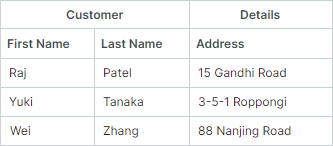
列组标题的顺序由列的视觉顺序决定。 如果链接到同一列组的列彼此相邻放置,它们的列组标题会被合并。
<mxtl:TreeListControl.Columns>
    <mxtl:TreeListColumn Width="*" FieldName="FirstName" BandName="Customer"/>
    <mxtl:TreeListColumn Width="*" FieldName="LastName" BandName="Customer"/>
    <mxtl:TreeListColumn Width="*" FieldName="Address" BandName="Details"/>
</mxtl:TreeListControl.Columns>
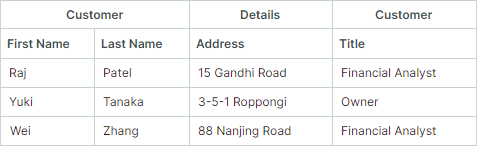
控件不会自动重新排列列以按列组分组。 如果链接到同一列组的列位于不相邻的位置(被链接到其他列组的列分隔开),TreeList 控件会在列标题上方创建多个同名的列组标题。
在以下代码片段中,链接到 Customer 列组的列被链接到 Details 列组的 Address 列分隔开。控件不会自动重新排列列,将它们合并为单个 Customer 列组:
<mxtl:TreeListControl.Columns>
    <mxtl:TreeListColumn Width="*" FieldName="FirstName" BandName="Customer"/>
    <mxtl:TreeListColumn Width="*" FieldName="LastName" BandName="Customer"/>
    <mxtl:TreeListColumn Width="*" FieldName="Address" BandName="Details"/>
    <mxtl:TreeListColumn Width="*" FieldName="Title" BandName="Customer"/>
</mxtl:TreeListControl.Columns>
拖放操作
列的拖放
如果 TreeListControl.AllowColumnMoving 为 true(默认值),用户可以在控件内自由拖放列。如果用户将某列拖到不同的列组中,控件会在该列的新位置上方绘制相应的列组标题(TreeListColumn.BandHeader)。参阅列和列组的顺序。
相关 API
TreeListControl.AllowColumnMoving—— 获取或设置是否启用列的拖放操作。
列组的拖放
TreeList 控件不支持对列组进行拖放操作。
显示和隐藏列组面板
列组面板用于显示列组标题。当任意一列与现有列组关联时,该面板即为可见。如需强制隐藏列组面板,请使用以下属性:
TreeListControl.ShowBands—— 获取或设置列组面板是否可见。
指定列组标题内容
Header—— 获取或设置列组标题的内容。如果未设置此属性,列组将显示TreeListBand.BandName属性的值。HeaderTemplate—— 获取或设置用于渲染Header对象的模板。该模板允许您显示图像和自定义控件,并以自定义方式渲染文本。
示例 - 在列组标题中显示图像
以下示例在列组标题中显示一个 SVG 图像,后面跟着一段文字说明。SVG 图像(address-location-icon.svg 文件)位于项目的 Assets 文件夹中,其 Build Action 属性设置为 AvaloniaResource。
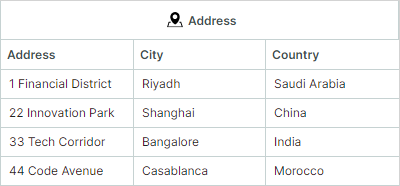
xmlns:svg="using:Avalonia.Svg.Skia"

<mxtl:TreeListControl.Bands>
    <mxtl:TreeListBand BandName="Customer" HeaderHorizontalAlignment="Center">
        <mxtl:TreeListBand.HeaderTemplate>
            <DataTemplate>
                <StackPanel Orientation="Horizontal">
                    <svg:Svg Path="/Assets/address-location-icon.svg" Width="16" Height="16" Margin="5" />
                    <TextBlock Text="{Binding}" VerticalAlignment="Center"/>
                </StackPanel>
            </DataTemplate>
        </mxtl:TreeListBand.HeaderTemplate>
</mxtl:TreeListControl.Bands>
空白列组标题
未与任何现有列组关联的列会显示在一个空白列组标题下方。
列组分隔线
TreeListControl.ShowBandSeparators—— 在相邻列组之间启用粗分隔线。使用此属性可以强调列组之间的分隔。如果禁用ShowBandSeparators,TreeList 会在列组之间绘制普通的列分隔线(细线)。
隐藏列组
列组对象没有 'Visible' 属性。要隐藏某个列组,您应该隐藏与该列组关联的列。
没有关联列的列组永远不会显示。
列组标题工具提示
使用 HeaderToolTip 属性为列组标题指定自定义工具提示。无论列组标题文本是否被截断,鼠标悬停在列组标题上时都会显示自定义工具提示。
<mxtl:TreeListBand BandName="Details" HeaderHorizontalAlignment="Center" HeaderToolTip="Contact and location information">
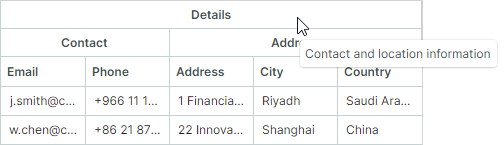
如果未为列组指定自定义工具提示,则在标题文本被截断时会显示默认工具提示。默认工具提示会显示完整、未截断的标题文本。
* 本页面使用机器翻译技术翻译。