ComboBoxEditor
ComboBoxEditor 控件是一种在其下拉窗口中显示项目列表的控件。用户可以根据该控件的选择模式一次选择一个或多个项目。
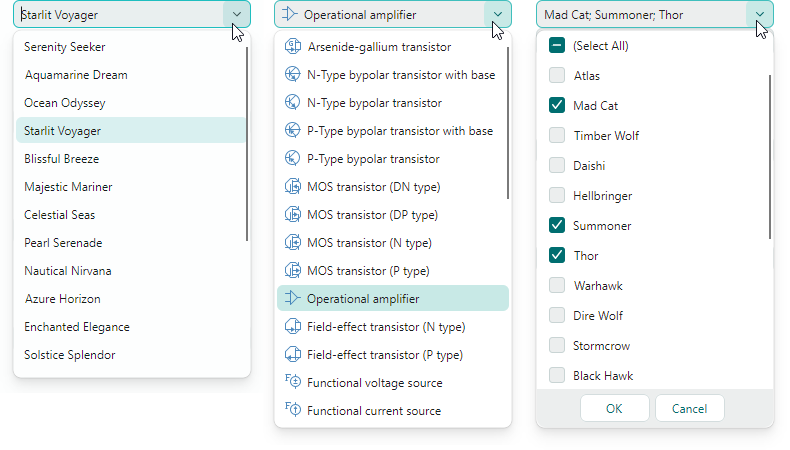
该控件的主要功能包括:
- 显示来自字符串列表、业务对象列表或枚举类型的值。
- 单项和多项选择模式。
- 自动完成功能。
- 在单项选择模式下于编辑框中进行文本编辑。
- 项目模板允许你以自定义方式呈现项目。
- 将该控件用作容器控件(例如 TreeList、TreeView 和 PropertyGrid)内的内嵌编辑器。
指定项目源
使用 ComboBoxEditor.ItemsSource 属性指定要在下拉列表中显示的项目列表。你可以将编辑器绑定到字符串列表、业务对象列表或枚举类型。
绑定到字符串列表
最简单的项目源是字符串列表。
用户可以根据当前的选择模式(见下文)选择一个或多个值。
如果编辑框中启用了文本编辑(参见 IsTextEditable),用户可以输入与下拉列表中任何项目都不匹配的文本。
示例 - 如何绑定到字符串列表
以下示例用一个字符串列表填充 ComboBoxEditor。
xmlns:mxe="https://schemas.eremexcontrols.net/avalonia/editors"
xmlns:sys="clr-namespace:System;assembly=mscorlib"
xmlns:local="clr-namespace:ComboBoxTestSample"

<mxe:ComboBoxEditor x:Name="myComboBox1">
    <mxe:ComboBoxEditor.ItemsSource>
        <local:MyItemList>
            <sys:String>Moscow</sys:String>
            <sys:String>Kazan</sys:String>
            <sys:String>Tver</sys:String>
        </local:MyItemList>
    </mxe:ComboBoxEditor.ItemsSource>
</mxe:ComboBoxEditor>
绑定到业务对象列表
你可以将 ComboBoxEditor 绑定到业务对象列表。在这种情况下,该控件的默认行为如下:
- 业务对象的
ToString方法指定项目的默认文本表示形式。 - 当你选择一个项目时,编辑器的值(
ComboBoxEditor.EditorValue)会被设置为对应的业务对象。
一个典型的业务对象具有多个属性。你可以指定由哪些业务对象属性提供项目显示文本和编辑值。为此请使用以下 API 成员:
ComboBoxEditor.DisplayMember- 获取或设置业务对象中用于指定项目显示文本的属性名称。ComboBoxEditor.ValueMember- 获取或设置业务对象中用于指定项目值的属性名称。当你选择一个项目时,编辑器的值(ComboBoxEditor.EditorValue)会被设置为该项目的ValueMember属性值。
示例 - 如何绑定到业务对象列表
以下示例将 ComboBoxEditor 绑定到 Product 业务对象列表。Product.ProductName 属性指定项目显示文本。Product.ProductID 属性指定项目值。
xmlns:mxe="https://schemas.eremexcontrols.net/avalonia/editors"
xmlns:local="clr-namespace:ComboBoxTestSample"

<Window.DataContext>
    <local:MainViewModel/>
</Window.DataContext>

<mxe:ComboBoxEditor
    x:Name="myComboBox2"
    ItemsSource="{Binding Products}"
    DisplayMember="ProductName"
    ValueMember="ProductID"
    SelectionMode="Multiple"
/>
public MainViewModel()
{
    Products = new ObservableCollection<Product>();
    //...
}

public partial class Product :ObservableObject
{
    public Product(int productID, string productName, string category, int productPrice)
    {
        ProductID = productID;
        ProductName = productName;
        Category = category;
        ProductPrice = productPrice;
    }

    [ObservableProperty]
    public int productID;

    [ObservableProperty]
    public string productName;

    [ObservableProperty]
    public string category;

    [ObservableProperty]
    public decimal productPrice;
}
绑定到枚举
ComboBoxEditor 可以在下拉列表中显示枚举类型的值。
Eremex.AvaloniaUI.Controls.Common.EnumItemsSource 辅助类简化了与枚举的绑定。它的主要功能包括:
- 在下拉列表中为枚举成员显示图像。将
Eremex.AvaloniaUI.Controls.Common.ImageAttribute属性应用到目标枚举成员即可指定图像。 - 为枚举成员指定自定义显示名称。使用
System.ComponentModel.DataAnnotations.DisplayAttribute属性或自定义转换器来更改默认的项目显示文本。 - 为下拉项目显示工具提示。工具提示中包含目标项目的描述文字,你可以通过
System.ComponentModel.DataAnnotations.DisplayAttribute属性或自定义转换器来提供该描述。
使用以下 EnumItemsSource 属性来设置与枚举类型的绑定:
EnumItemsSource.EnumType— 指定其值将显示在 ComboBoxEditor 中的枚举类型。EnumItemsSource.ShowImages— 指定是否在下拉列表中为枚举成员显示图像。你可以使用Eremex.AvaloniaUI.Controls.Common.ImageAttribute属性提供图像。EnumItemsSource.ShowNames— 指定是否显示项目文本。将ShowNames设置为false、ShowImages设置为true,即可仅使用图像而不使用文本呈现枚举成员。EnumItemsSource.ImageSize— 指定分配给枚举成员的图像的显示大小。EnumItemsSource.NameToDisplayTextConverter— 允许你指定一个转换器,用于获取枚举成员的自定义显示文本。EnumItemsSource.NameToDescriptionConverter— 允许你指定一个转换器,用于获取枚举成员的描述文字,当用户将鼠标悬停在下拉项目上时,该描述会以工具提示的形式显示。
示例 - 如何显示枚举值,并使用特性为枚举成员提供显示文本和图像
以下示例在 ComboBoxEditor 中显示 ProductCategoryEnum 枚举的值。该示例使用 EnumItemsSource 类进行数据绑定。
System.ComponentModel.DataAnnotations.DisplayAttribute 和 Eremex.AvaloniaUI.Controls.Common.ImageAttribute 特性为枚举成员指定了自定义显示文本、描述(工具提示)和图像。
xmlns:mx="https://schemas.eremexcontrols.net/avalonia"
xmlns:mxe="https://schemas.eremexcontrols.net/avalonia/editors"

<mxe:ComboBoxEditor Name="comboBoxEditorEnum"
 ItemsSource="{mx:EnumItemsSource
  EnumType=local:ProductCategoryEnum, ImageSize='16, 16',
  ShowImages=True, ShowNames=True}"
 IsTextEditable="True"
 AutoComplete="True">
</mxe:ComboBoxEditor>
using Eremex.AvaloniaUI.Controls.Common;
using System.ComponentModel.DataAnnotations;

public enum ProductCategoryEnum
{
    // The images assigned to the enumeration values below are placed
    // in the ComboBoxTestSample/Images folder.
    // They have their "Build Action" properties set to "AvaloniaResource".
    [Image($"avares://ComboBoxTestSample/Images/Products/DairyProducts.svg")]
    [Display(Name = "Dairy Products", Description = "Products made from milk")]
    DairyProducts,

    [Image($"avares://ComboBoxTestSample/Images/Products/Beverages.svg")]
    [Display(Description = "Edible drinks")]
    Beverages,

    [Image($"avares://ComboBoxTestSample/Images/Products/Condiments.svg")]
    [Display(Description = "Flavor Enhancers")]
    Condiments,

    [Image($"avares://ComboBoxTestSample/Images/Products/Confections.svg")]
    [Display(Description = "Sweets")]
    Confections
}
示例 - 如何显示枚举值,并使用自定义转换器为枚举成员提供显示文本
以下示例使用 EnumItemsSource 类在 ComboBoxEditor 中显示枚举类型的值。EnumItemsSource.NameToDisplayTextConverter 和 EnumItemsSource.NameToDescriptionConverter 对象为枚举成员提供自定义显示文本和描述(工具提示)。
xmlns:mxe="https://schemas.eremexcontrols.net/avalonia/editors"
xmlns:mx="https://schemas.eremexcontrols.net/avalonia"
xmlns:local="clr-namespace:ComboBoxTestSample"

<mxe:ComboBoxEditor Name="comboBoxEditorEnumWithConverters"
 ItemsSource="{mx:EnumItemsSource EnumType=local:ProductCategoryEnum,
  ImageSize='16, 16', ShowImages=True, ShowNames=True,
  NameToDisplayTextConverter={local:EnumMemberNameToDisplayTextConverter},
  NameToDescriptionConverter={local:EnumMemberNameToDescriptionConverter}}"
 IsTextEditable="True"
 AutoComplete="True">
</mxe:ComboBoxEditor>
using Eremex.AvaloniaUI.Controls.Common;

public enum ProductCategoryEnum
{
    // The images assigned to the enumeration values below are placed
    // in the ComboBoxTestSample/Images folder.
    // They have their "Build Action" properties set to "AvaloniaResource".
    [Image($"avares://ComboBoxTestSample/Images/Products/DairyProducts.svg")]
    DairyProducts,

    [Image($"avares://ComboBoxTestSample/Images/Products/Beverages.svg")]
    Beverages,

    [Image($"avares://ComboBoxTestSample/Images/Products/Condiments.svg")]
    Condiments,

    [Image($"avares://ComboBoxTestSample/Images/Products/Confections.svg")]
    Confections
}

public class EnumMemberNameToDisplayTextConverter : BaseEnumConverter
{
    protected override void PopulateDictionary()
    {
        TextValueDictionary.Add("ProductCategoryEnum_DairyProducts", "Dairy");
    }
}
public class EnumMemberNameToDescriptionConverter : BaseEnumConverter
{
    protected override void PopulateDictionary()
    {
        TextValueDictionary.Add("ProductCategoryEnum_DairyProducts", "Milk Products");
    }
}

public abstract class BaseEnumConverter : MarkupExtension, IValueConverter
{
    protected Dictionary<string, string> TextValueDictionary;

    public BaseEnumConverter()
    {
        TextValueDictionary = new Dictionary<string, string>();
        PopulateDictionary();
    }

    protected abstract void PopulateDictionary();

    public override object ProvideValue(IServiceProvider serviceProvider)
    {
        return this;
    }
    public object? Convert(object? value, Type targetType, object? parameter,
     System.Globalization.CultureInfo culture)
    {
        var type = value?.GetType();
        var memberName = value?.ToString();
        if (type == null || !type.IsEnum || string.IsNullOrEmpty(memberName))
            return null;
        return EnumMemberToString(type.Name, memberName);
    }

    protected virtual string EnumMemberToString(string enumName, string enumMemberName)
    {
        string fullMemberName = enumName + "_" + enumMemberName;
        if (TextValueDictionary.ContainsKey(fullMemberName))
            return TextValueDictionary[fullMemberName];
        else
            return enumMemberName;
    }

    public object? ConvertBack(object? value, Type targetType, object? parameter,
     System.Globalization.CultureInfo culture)
    {
        return null;
    }
}
指定项目选择模式
SelectionMode 属性允许你在单项和多项选择模式之间进行选择。
单项选择模式为默认模式。如果启用了文本编辑(参见 IsTextEditable),可以指定与下拉列表中任何项目都不匹配的编辑值(或编辑框中的文本)。
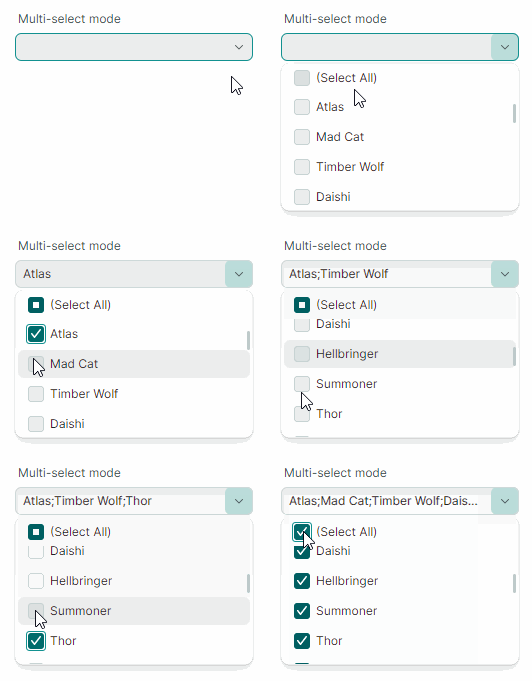
将 SelectionMode 属性设置为 ItemSelectionMode.Multiple 即可启用多项选择。在多选模式下,编辑器会在下拉列表的每个项目前显示复选框。用户可以切换这些复选框,向选择集中添加或移除项目。
在多选模式下,编辑框中的文本编辑被禁用。
获取和设置选定的项目(Item / Items)
SelectedItem 属性允许你在单选模式下选择和获取当前选定的项目。如果未选择任何项目,该属性返回 null。
SelectedItems 属性指定一个列表(IList 对象),其中包含多选模式下选定的项目。如果未选择任何项目,该属性返回一个空列表。
Note
SelectedItem 和 SelectedItems 属性按以下方式保持同步。
在单选模式下,SelectedItems 属性指定一个包含单个项目的列表——即选定项目(SelectedItem 属性的值)。如果未选择任何项目,该属性返回一个空列表。
在多选模式下,SelectedItem 属性指定第一个选定的项目(SelectedItems 列表中的第一个项目)。如果未选择任何项目,该属性返回 null。
示例 - 如何选择项目
以下代码在以单选和多选模式运行的 ComboBoxEditor 中选择项目。
// Select an item in single selection mode
var itemSource1 = myComboBox1.ItemsSource as MyItemList;
if(itemSource1 != null)
    myComboBox1.SelectedItem = itemSource1[0];

// Select items in multi-select mode
var itemSource2 = myComboBox2.ItemsSource as ObservableCollection<Product>;
if (itemSource2 != null)
    myComboBox2.SelectedItems = new List<Product>()
     { itemSource2[0], itemSource2[1] };
多选模式下的“(Select All)”项目
在多选模式下,编辑器会在下拉列表顶部显示预定义的 (Select All) 复选框。该复选框允许用户选择/取消选择所有项目。要隐藏 (Select All) 复选框,请将 ComboBoxEditor.ShowPredefinedSelectItem 属性设置为 false。
相关 API
- SelectAllItemText — 允许你为“(Select All)”项目指定自定义显示文本。
单选模式下的“(None)”项目
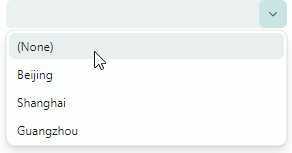
在单选模式下,你可以将 ComboBoxEditor.ShowPredefinedSelectItem 属性设置为 true,以在下拉列表中显示预定义的 (None) 项目。选择 (None) 项目会将编辑器的值设置为 null,从而清除当前选择。
相关 API
- ClearValueItemText — 允许你为“(None)”项目指定自定义显示文本。
指定编辑器值
当用户输入文本、通过自动完成功能在编辑框中选择某项,或在下拉列表中选取某项时,编辑器会更改其编辑值(EditorValue 属性的值)。
通常情况下,编辑值与 SelectedItem 属性(单选模式下)或 SelectedItems 属性(多选模式下)的值一致,本节所述的例外情况除外。
编辑值取决于项目选择模式。在单项选择模式下,编辑值是单个值;而在多项选择模式下,编辑值是一个指定值列表的 IList 对象。
在以下情况下,EditorValue 属性与 SelectedItem/SelectedItems 属性不会保持同步:
-
ComboBoxEditor 绑定到字符串列表,且编辑框中指定的文本与下拉列表中的任何项目都不匹配。此时,
SelectedItem属性返回null,而EditorValue属性则指定编辑框中显示的文本。Tip
启用
ComboBoxEditor.IsTextEditable选项,以允许用户在编辑框中编辑文本。示例 - 当 ComboBox 绑定到字符串列表时,如何设置编辑器值
以下示例为绑定到字符串列表的 ComboBoxEditor 设置编辑值。
xmlns:mxe="https://schemas.eremexcontrols.net/avalonia/editors" xmlns:sys="clr-namespace:System;assembly=mscorlib" xmlns:local="clr-namespace:ComboBoxTestSample" <mxe:ComboBoxEditor x:Name="myComboBox1"> <mxe:ComboBoxEditor.ItemsSource> <local:MyItemList> <sys:String>Moscow</sys:String> <sys:String>Kazan</sys:String> <sys:String>Tver</sys:String> </local:MyItemList> </mxe:ComboBoxEditor.ItemsSource> </mxe:ComboBoxEditor> -
ComboBoxEditor 绑定到业务对象列表,并设置了
ValueMember属性。ValueMember属性指定业务对象中用于提供项目值的属性名称。当你选择一个或多个项目时,SelectedItem/SelectedItems属性包含所选对象,而EditorValue属性则指定所选对象的值。示例 - 当 ComboBoxEditor 绑定到业务对象列表时,如何选择项目
在以下示例中,ComboBoxEditor 在多选模式下绑定到 Product 对象列表。
ValueMember属性引用 Product.ProductID 成员。 因此,产品 ID 用作项目值。当用户选择项目时,EditorValue属性会被设置为一个包含相应产品 ID 的列表。该示例使用EditorValue属性在代码中选择项目。xmlns:mxe="https://schemas.eremexcontrols.net/avalonia/editors" xmlns:sys="clr-namespace:System;assembly=mscorlib" xmlns:local="clr-namespace:ComboBoxTestSample" <mxe:ComboBoxEditor x:Name="myComboBox2" ItemsSource="{Binding Products}" DisplayMember="ProductName" ValueMember="ProductID" SelectionMode="Multiple" />// Select items by their product IDs: var itemSource2 = myComboBox2.ItemsSource as ObservableCollection<Product>; if(itemSource2 != null) myComboBox2.EditorValue = new List<int>() { itemSource2[3].ProductID, itemSource2[5].ProductID }; //The SelectedItems property will return a list that contains //two Product objects (itemSource2[3] and itemSource2[5]). //... public partial class Product :ObservableObject { public Product(int productID, string productName, string category, int productPrice) { ProductID = productID; ProductName = productName; Category = category; ProductPrice = productPrice; } [ObservableProperty] public int productID; [ObservableProperty] public string productName; [ObservableProperty] public string category; [ObservableProperty] public decimal productPrice; }
在多选模式下立即更新编辑器值
编辑器的默认行为是在多选模式下于下拉窗口中显示“确定”和“取消”按钮。这些按钮允许用户确认或取消他们对项目的选择。 在这种模式下,编辑器的值只会在用户按下“确定”按钮后才会更新。
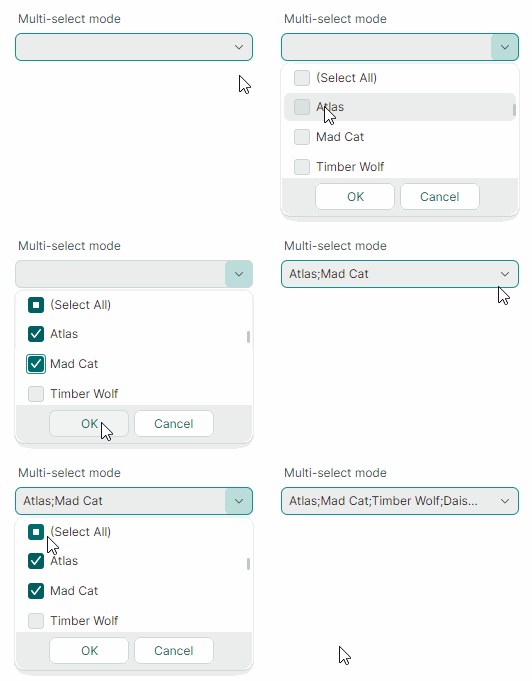
ComboBoxEditor 可以在用户勾选或取消勾选下拉列表中的项目时立即更新其值。要启用该模式,请将 PopupFooterButtons 属性设置为 None,以隐藏“确定”和“取消”按钮。
<mxe:ComboBoxEditor x:Name="MultiSelectComboBox"
    SelectionMode="Multiple"
    PopupFooterButtons="None"/>
指定项目模板
默认情况下,ComboBoxEditor 使用项目显示文本来渲染下拉列表中的每个项目。默认的项目显示文本由项目的 ToString 方法指定。当编辑器绑定到业务对象列表时,你可以使用 DisplayMember 属性指定提供项目显示文本的属性。
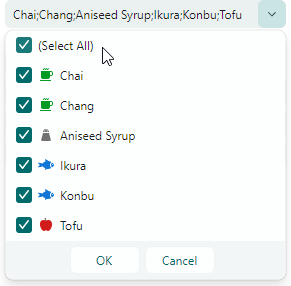
你可以使用 ItemTemplate 属性指定一个数据模板,以自定义方式呈现下拉列表中的项目。例如,数据模板可以帮助你为项目显示图像,如下例所示。
启用 ComboBoxEditor.ApplyItemTemplateToEditBox 选项,可将指定的项目模板(ItemTemplate 属性)应用到编辑框。如果启用了文本编辑(IsTextEditable 选项设置为 true),该属性将不起作用。
示例 - 如何使用 DataTemplate 为 ComboBox 项目显示图像
以下示例使用 ItemTemplate 属性指定一个数据模板,用于在下拉列表中为 ComboBox 项目显示图像。
ComboBoxEditor 绑定到一个存储 Product 对象的列表。Product 对象包含 Category 属性,用于指定产品类别(Beverages、Condiments、Seafood 或 Produce)。
假设项目在“ComboBoxTestSample/Images/Products”文件夹中存储了产品类别的 SVG 图像。这些图像的名称分别为“Beverages.svg”“Condiments.svg”“Seafood.svg”和“Produce.svg”,并标记有“AvaloniaResource”标志。
创建的项目数据模板会显示产品名称,以及与产品类别对应的图像。
xmlns:mxe="https://schemas.eremexcontrols.net/avalonia/editors"
xmlns:sys="clr-namespace:System;assembly=mscorlib"
xmlns:local="clr-namespace:ComboBoxTestSample"

<Window.DataContext>
    <local:MainViewModel/>
</Window.DataContext>
<Window.Resources>
    <local:NameToSvgConverter x:Key="NameToSvgConverter"/>
    <DataTemplate x:Key="ProductItemTemplate">
        <Grid>
            <Grid.ColumnDefinitions>
                <ColumnDefinition Width="Auto"/>
                <ColumnDefinition Width="*"/>
            </Grid.ColumnDefinitions>
            <Image Width="16" Height="16" Source="{Binding Path=Category,
             Converter={StaticResource NameToSvgConverter}}"/>
            <TextBlock VerticalAlignment="Center" Grid.Column="1" Margin="6,0,0,0"
             Text="{Binding Path=ProductName}"/>
        </Grid>
    </DataTemplate>
</Window.Resources>

<mxe:ComboBoxEditor
    x:Name="myComboBox2"
    ItemsSource="{Binding Products}"
    DisplayMember="ProductName"
    ValueMember="ProductID"
    SelectionMode="Multiple"
    ItemTemplate="{StaticResource ProductItemTemplate}"
/>
using Avalonia.Svg.Skia;
using Eremex.AvaloniaUI.Controls.Utils;

public partial class MainViewModel : ViewModelBase
{
    [ObservableProperty]
    public ObservableCollection<Product> products;

    public MainViewModel()
    {
        Products = new ObservableCollection<Product>();
        Products.Add(new Product(0, "Chai", "Beverages", 200));
        Products.Add(new Product(1, "Chang", "Beverages", 100));
        Products.Add(new Product(2, "Aniseed Syrup", "Condiments", 150));
        Products.Add(new Product(3, "Ikura", "Seafood", 500));
        Products.Add(new Product(4, "Konbu", "Seafood", 390));
        Products.Add(new Product(5, "Tofu", "Produce", 430));
    }
}

public partial class Product :ObservableObject
{
    public Product(int productID, string productName, string category, int productPrice)
    {
        ProductID = productID;
        ProductName = productName;
        Category = category;
        ProductPrice = productPrice;
    }

    [ObservableProperty]
    public int productID;

    [ObservableProperty]
    public string productName;

    [ObservableProperty]
    public string category;

    [ObservableProperty]
    public decimal productPrice;
}

public class NameToSvgConverter : MarkupExtension, IValueConverter
{
    public object? Convert(object? value, Type targetType, object? parameter,
     CultureInfo culture)
    {
        if(value == null)
            return null;
        string name = value.ToString();

        return ImageLoader.LoadSvgImage(Assembly.GetExecutingAssembly(), $"Images/Products/{name}.svg");
    }

    public object? ConvertBack(object? value, Type targetType, object? parameter,
     CultureInfo culture)
    {
        throw new NotImplementedException();
    }

    public override object ProvideValue(IServiceProvider serviceProvider)
    {
        return this;
    }
}
添加自定义按钮
ComboBoxEditor 是 ButtonEditor 控件的派生类。因此,你可以在编辑框中默认的下拉按钮旁边添加自定义按钮。使用 ComboBoxEditor.Buttons 集合来添加自定义按钮。
示例 - 如何添加自定义按钮
以下示例向 ComboBoxEditor 添加了一个普通按钮和一个复选按钮。该编辑器通过 EnumItemsSource 辅助类绑定到 ProductCategoryEnum 枚举。
第一个按钮是普通按钮(其 ButtonKind 属性设置为 Simple)。点击该按钮会调用 ResetValue 命令,将编辑器的值设置为默认值(所绑定枚举类型的第一个元素)。
第二个按钮是复选按钮(其 ButtonKind 属性设置为 Toggle)。点击该按钮会切换编辑器的 IsTextEditable 属性值。LockedStateToSvgNameConverter 转换器会根据按钮的选中状态,为按钮的图形分配“locked.svg”或“unlocked.svg”图像。这些图像存储在 ComboBoxTestSample/Images 文件夹中,并标记有“AvaloniaResource”标志。
xmlns:mxe="https://schemas.eremexcontrols.net/avalonia/editors"
xmlns:mx="https://schemas.eremexcontrols.net/avalonia"
xmlns:local="clr-namespace:ComboBoxTestSample"

<mxe:ComboBoxEditor Name="comboBoxEditorEnum"
 ItemsSource="{mx:EnumItemsSource EnumType=local:ProductCategoryEnum,
  ImageSize='16, 16', ShowImages=True, ShowNames=True}"
 IsTextEditable="True"
 AutoComplete="True">
    <mxe:ComboBoxEditor.Buttons>
        <mxe:ButtonSettings ButtonKind="Simple"
         Glyph="{SvgImage 'avares://ComboBoxTestSample/Images/square_dot_icon.svg'}"
         Command="{Binding ResetValueCommand}"
         CommandParameter="{Binding #comboBoxEditorEnum}">
        </mxe:ButtonSettings>
        <mxe:ButtonSettings ButtonKind="Toggle"
         Glyph="{Binding $self.IsChecked, Converter={local:LockedStateToSvgNameConverter}}"
         IsChecked="{Binding !$parent.IsTextEditable}">
        </mxe:ButtonSettings>
    </mxe:ComboBoxEditor.Buttons>
</mxe:ComboBoxEditor>
using CommunityToolkit.Mvvm.Input;
using Eremex.AvaloniaUI.Controls.Editors;
using Avalonia.Svg.Skia;
using Eremex.AvaloniaUI.Controls.Utils;

public partial class MainViewModel : ViewModelBase
{
    // Sets the editor's value to the first element.
    [RelayCommand]
    void ResetValue(ComboBoxEditor editor)
    {
        // Get the first item in the ComboBoxEditor's bound list.
        var enumerator = editor.ItemsSource.GetEnumerator();
        enumerator.MoveNext();
        object firstItem = enumerator.Current;
        // When the ComboBoxEditor is bound to an EnumItemsSource,
        // the editor's items are EnumMemberInfo objects.
        EnumMemberInfo mInfo = firstItem as EnumMemberInfo;
        if (mInfo != null)
            editor.EditorValue = mInfo.Id;
    }
}

public class LockedStateToSvgNameConverter : MarkupExtension, IValueConverter
{
    public object? Convert(object? value, Type targetType, object? parameter,
    CultureInfo culture)
    {
        if (value == null)
            return null;
        bool isLocked = (bool)value;
        string lockedState = isLocked ? "locked" : "unlocked";

        if (isLocked)
            lockedState = "locked";

        return ImageLoader.LoadSvgImage(Assembly.GetExecutingAssembly(), $"Images/{lockedState}.svg");
    }

    public object? ConvertBack(object? value, Type targetType, object? parameter,
     CultureInfo culture)
    {
        throw new NotImplementedException();
    }

    public override object ProvideValue(IServiceProvider serviceProvider)
    {
        return this;
    }
}

public enum ProductCategoryEnum
{
    [Image($"avares://ComboBoxTestSample/Images/Products/DairyProducts.svg")]
    [Display(Name = "Dairy Products", Description = "Products made from milk")]
    DairyProducts,

    [Image($"avares://ComboBoxTestSample/Images/Products/Beverages.svg")]
    [Display(Description = "Edible drinks")]
    Beverages,

    [Image($"avares://ComboBoxTestSample/Images/Products/Condiments.svg")]
    [Display(Description = "Flavor Enhancers")]
    Condiments,

    [Image($"avares://ComboBoxTestSample/Images/Products/Confections.svg")]
    [Display(Description = "Sweets")]
    Confections
}
文本自动完成
将 AutoComplete 选项设置为 true 以启用文本自动完成功能。如果用户输入的文本与下拉列表中的某个项目匹配,此功能会自动补全该文本。
在以下情况下,ComboBoxEditor 不支持文本自动完成:
- 文本编辑被禁用(
IsTextEditable属性设置为false)。 - 使用多项选择模式(
SelectionMode属性设置为Multiple)。
自动过滤
如果自动完成功能被禁用,ComboBox 编辑器会使用自动过滤机制来过滤下拉列表中的项目,以匹配用户在编辑器中输入的文本。
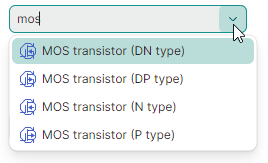
FilterCondition 属性指定用于过滤项目的过滤运算符(StartsWith 或 Contains)。
以下示例为该编辑器应用了 Contains 过滤器。
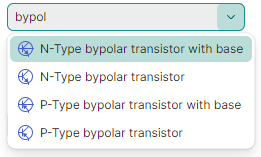
你可以处理 FilterItem 事件,在自动过滤过程中自定义过滤项目。该事件会针对下拉列表中的每个项目重复触发。该事件的参数允许你识别 combobox 项目并指定其可见性。
e.Item— 表示当前正在处理的项目的对象。e.SearchText— 用户在编辑框中输入的、用于自动项目过滤的文本。e.IsVisible— 该项目在下拉列表中的可见性。
以下 FilterItem 事件处理程序通过在 combobox 项目的 MyBusinessObject.InvoiceID 字段中搜索,对 ComboBoxEditor 控件中的项目进行自定义过滤。
void ComboBox1_FilterItem(object sender, Eremex.AvaloniaUI.Controls.Editors.ComboBoxFilterEventArgs e)
{
    var invID = (e.Item as MyBusinessObject)!.InvoiceID;
    e.IsVisible = invID == null || string.IsNullOrEmpty(e.SearchText) ?
      false : invID.Contains(e.SearchText!.Substring(0, 3));
}
防止只读编辑器弹出下拉窗口
在只读模式下,任何弹出式编辑器的默认行为都是允许用户打开编辑器的下拉窗口。但用户无法通过编辑框或下拉窗口修改值。要为只读编辑器禁用弹出窗口,请将 ShowPopupIfReadOnly 属性设置为 false。
阻止弹出窗口打开和关闭
你可以处理以下继承事件来取消弹出窗口的打开和关闭操作:
PopupEditor.PopupOpening— 在弹出窗口即将创建时触发。PopupEditor.PopupClosing— 在弹出窗口即将关闭时触发。
这些事件提供 e.Cancel 参数。将其设置为 true 即可取消当前操作。
在弹出窗口出现时对其进行自定义
处理以下继承事件,以修改弹出窗口或其嵌套控件:
PopupEditor.PopupOpened— 在弹出窗口创建完成之后、显示之前立即触发。这是一个通知事件,不允许你取消弹出窗口的打开操作。处理PopupOpened事件即可自定义弹出窗口或其子控件。
在处理 PopupEditor.PopupOpened 事件时,可使用编辑器的 PopupContent 属性安全地访问编辑器弹出窗口内部的控件。PopupOpened 事件确保在你访问该弹出窗口控件时它已经存在。对于 ComboBoxEditor 控件而言,PopupContent 属性返回一个 ComboBoxPopupControl 类的实例。
响应弹出窗口的关闭
使用以下继承事件,在弹出窗口关闭后执行相应操作:
PopupEditor.PopupClosed— 在弹出窗口关闭后立即触发。这是一个通知事件,不允许你取消弹出窗口的关闭操作。
* 本页面使用机器翻译技术翻译。